
For many years, people worried about digital sovereignty in a Microsoft environment have used on-premise Sharepoint and the embedded Microsoft Office Online (MOO) editors to allow users to collaborate on internal documents with private or confidential data.
However – Microsoft has announced that Office Online Server will reach end of support and retirement on 31 December 2026 and users who want equivalent functionality will need to send their documents to Microsoft’s cloud. From 1 January 2027, organisations still using it will be running without security updates, bug fixes or technical support, in an era of increasingly aggressive AI driven cyber-attacks.
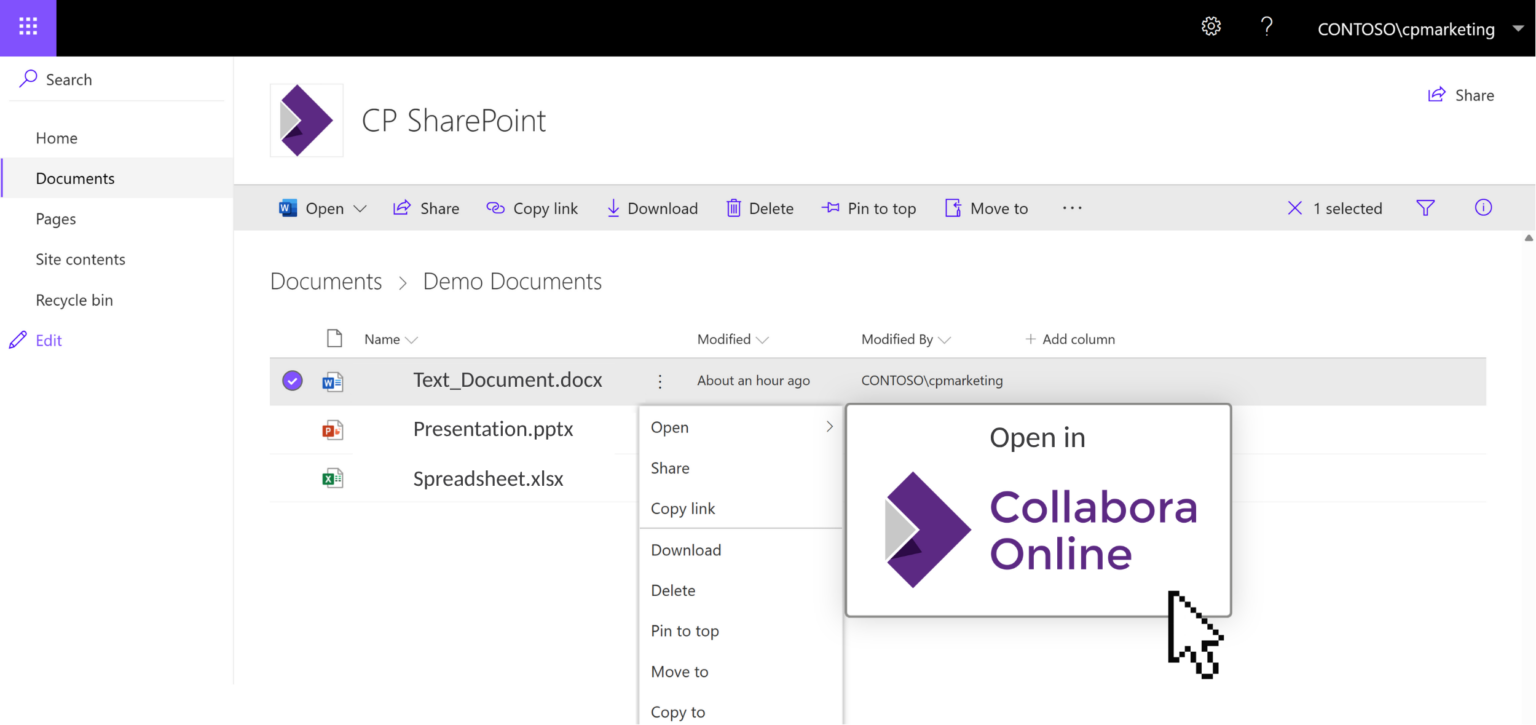
The good news is that for SharePoint environments, Collabora Online can provide an easy drop-in replacement: just install Collabora Online on a server, point SharePoint’s WOPI bindings at it, set the WOPI zone, and users can continue opening and editing their documents locally.
A deadline — and a direction of travel
The end of Office Online Server is part of a wider direction of travel from Microsoft: away from self-hosted control and towards Microsoft hosted Office 365.
For some organisations, that may be acceptable. For many, it creates serious questions. Public sector bodies, regulated industries, sovereign cloud providers, managed service providers and anyone else who values privacy and GDPR compliance cannot move document collaboration deeper into Microsoft’s cloud. Indeed, this was why they originally chose MOO on premise.
As well as those with regulatory needs, many organisations are concerned about moving their data and getting further tied into the Microsoft ecosystem.
Your customers still need document collaboration they control
For integrators and platform providers, the retirement of MOO creates both a challenge and an opportunity.
Namely – customers who rely on Office Online Server need a supported alternative today. Whether they are using it alongside SharePoint, or as part of a wider WOPI-based document workflow, with potentially complex templates, established business processes and existing storage platforms. Something good needs to fill the void.
Microsoft would of course like to steer these customers further into their steadily closing garden, but increasingly organisations are realising they need a solution that works with their infrastructure, not against it.
That is where Collabora Online comes to the rescue.
Collabora Online: the flexible alternative
Self-hosted, fully cloud-based, or as a hybrid model, Collabora Online is a powerful, open-source online office suite for organisations and platforms that need document editing under their own control.
For many MOO use cases, Collabora Online acts as a drop-in, WOPI-compatible alternative. Existing storage platforms can remain in place. Users can continue opening and editing their docx’s, xlsx’s and pptx’s in the browser.
Collabora Online is a natural fit for integrators, hosting providers, platform vendors and service providers who need to give their customers a credible path beyond Office Online Server.
With Collabora Online, you have:
- Self-hosted and private cloud deployment:
- Keep document editing within infrastructure the customer controls.
- Open-source foundations:
- Avoid replacing one closed dependency with another.
- Data sovereignty:
- When you need strong control over where documents are stored, processed and edited.
- Integration with existing platforms:
- Use our WOPI-like integration and connect document editing to established storage, permissions and workflows.
- Support for Microsoft Office file formats:
- Allow users to continue working with familiar DOCX, XLSX and PPTX documents in the browser.
- Enjoy the improved features of Collabora Online:
- Not just all of this, but there are many improvements that you can discover and enjoy in Collabora Online.
A strong fit for SharePoint and WOPI-based workflows
The retirement of Office Online Server is a reminder that digital sovereignty depends on more than storage location. It depends on the whole document stack: the file formats, the editing layer, the integration points, the support model and the long-term roadmap.
Microsoft’s direction is clear: the future of their office stack lives in the Microsoft 365 cloud, and the on-premises editing story is ending with Office Online Server. For customers comfortable with that trajectory, the path is well-signposted. But for those whose regulatory environment, data residency obligations, or long-term strategy requires a self-hosted option, following Microsoft into the cloud isn’t a choice they can make. Fortunately for anyone who has questions about handing the keys to their whole stack (literally?) to one external vendor, there is a credible, supported alternative.
Make Collabora Online your solution
If you have a looming MOO problem, now is the time to act. Audit your current OOS dependencies, and get in touch – we’d love to help you with a demo or integration support.
We can also provide a stop-gap solution for your requirements here, but beware: you may fall in love with a better, truly open solution, and end up in a fresh and exciting digitally sovereign world – which will ultimately free you from ever being forced to make such a change again.
Microsoft’s Office Online Server may be retiring, but self-hosted document collaboration does not have to. Keep online document editing under your control with Collabora Online.
How do I integrate Collabora Online with SharePoint?
Once you have installed Collabora Online on a server, in most cases, you can just set the WOPI Bindings in SharePoint to bind to Collabora Online. In the SharePoint Management Shell, it is a two step process:
1. Set the WOPI bindings inpowershell with:
New-SPWOPIBinding -ServerName cool-server-name.example.com:port
(replace cool-server-name.example.com with the host name of the Collabora Online server, and port with the port number, that is 9980 by default.
2. Set the WOPI Zone with
Set-SPWOPIZone -Zone “external-https”.