
The next major release of Collabora Online Development Edition is here!
This release brings major improvements with AI-assisted workflows, new editing features, smarter document review, ever-improving document interoperability, accessibility, and of course everyday user experience.
Writer gains smarter review tools, Markdown workflows, easier style access and better navigation for long documents. Calc adds per-user sheet views, more modern functions, table styles, calculated pivot functions with improved filtering and dropdown behaviour. Impress continues to improve collaborative presenting, introduces slides section support, and gets better font embedding. The wider user interface benefits from accessibility work, more flexible dark mode, better settings, sharper PDF rendering, and more flexible document opening behaviour.
Whether you are a developer or open-source enthusiast, using CODE at home or in a small team, CODE 26.04 is packed with improvements that make document editing more capable, more intuitive, and more flexible. Let’s dive into what’s new.
Smarter workflows. Powerful data. AI integration.
Collabora Online Development Edition is perfect for small teams, home users, and early adopters looking to explore the latest capabilities. While ideal for testing and development, it is not intended for production environments as it often includes exciting new, but less mature features for people to play with.
Once thoroughly tested in CODE, new features are moved to Collabora Online (COOL), Collabora Productivity’s open source document editing and collaboration solution with professional service-level agreements (SLA) and technical support. COOL is designed for integration into an organisation’s infrastructure and integrated into many partner collaborative platforms. COOL 26.04 will be available in the coming weeks.
New to try in 26.04
Smarter Writing, Review & Document Workflows
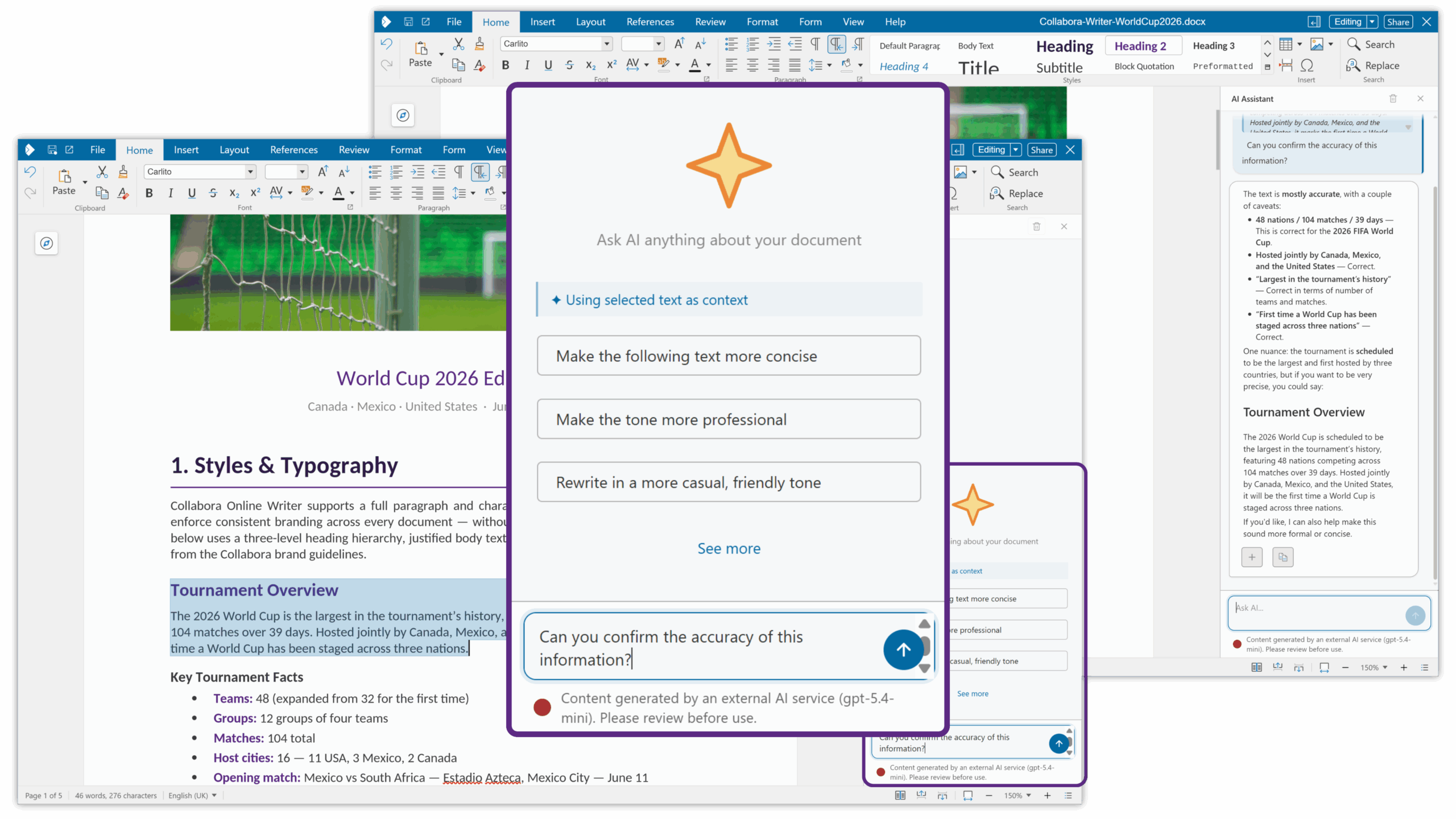
AI Integration in Writer
Writer now benefits from new AI-powered assistance, helping users with tasks such as text suggestions, improvements, and other writing-oriented workflows. This opens the door to faster drafting, easier refinement, and more efficient document creation directly within Collabora Online.
Whether you are polishing internal reports, improving clarity in customer-facing documents, or simply trying to work faster, an AI integration makes Writer more helpful without taking you out of your document workflow.
Compare Writer Documents – Richer document comparison for serious review workflows
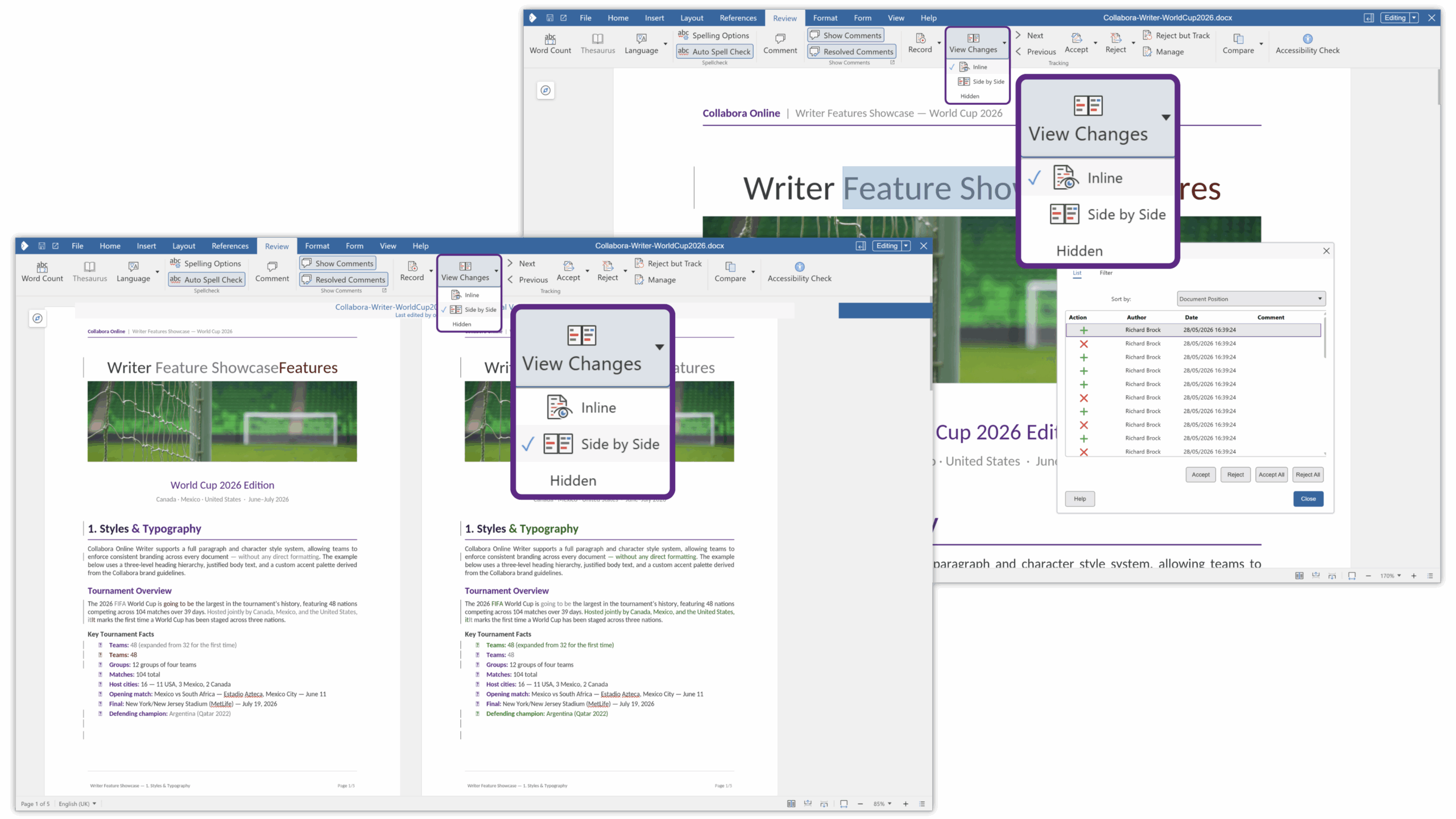
Reviewing changes between document versions is now much more powerful. Users can easily compare the current document with an earlier version, from server or as local document, and view insertions, deletions, moved text, images, and tables as colour-coded redlines, complete with author and date details.
This makes it far easier to understand what changed, who changed it, and when, especially in contracts, policy documents, technical documentation, and other high-value review processes.
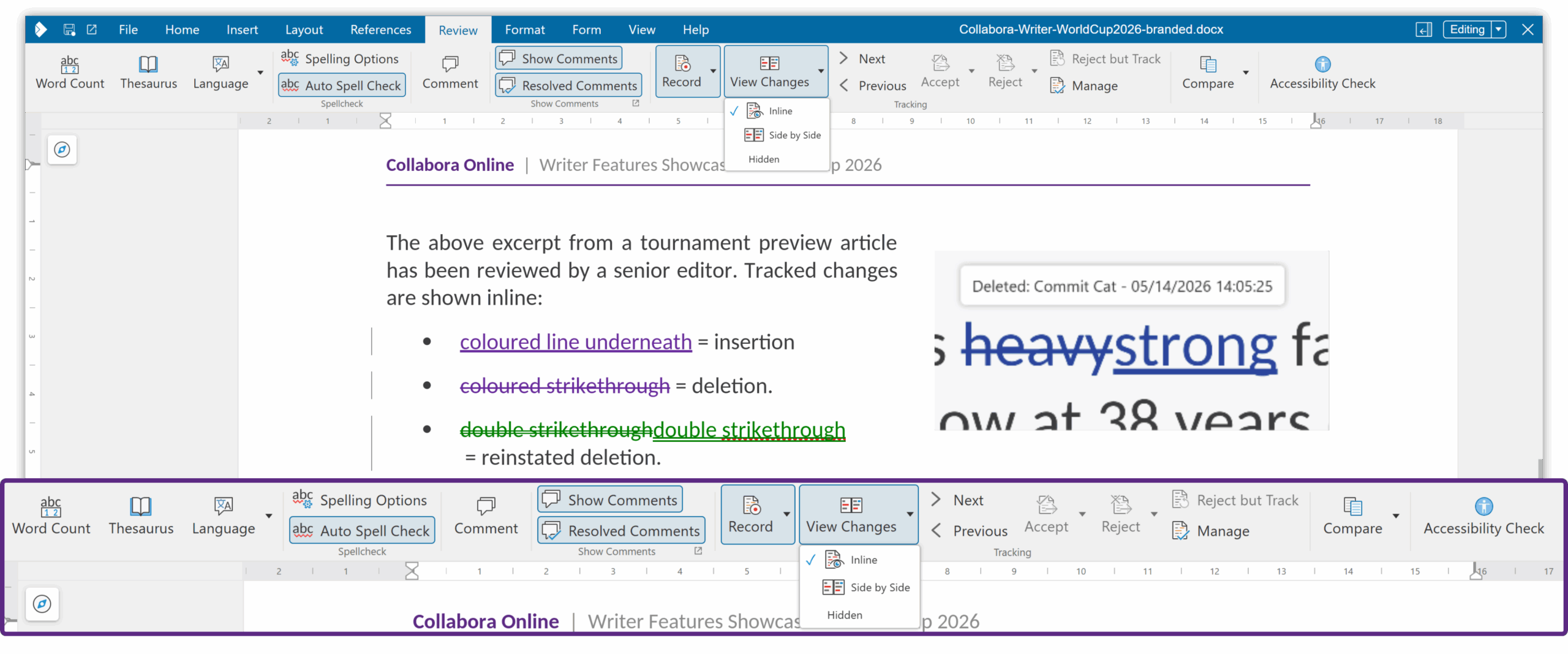
Changes between versions of a document can be viewed either side-by-side, or using the standard tracked changes dialog.
Multi-Page View in Writer – Easier navigation across long documents
Long-document editing and review is now more comfortable with Multi-Page View in Writer. By showing two pages side-by-side, this feature makes it easier to navigate, review layout, and understand document structure at a glance.
Whether working on reports, manuals, or complex formatted documents, users can now move through content more naturally and with better context.

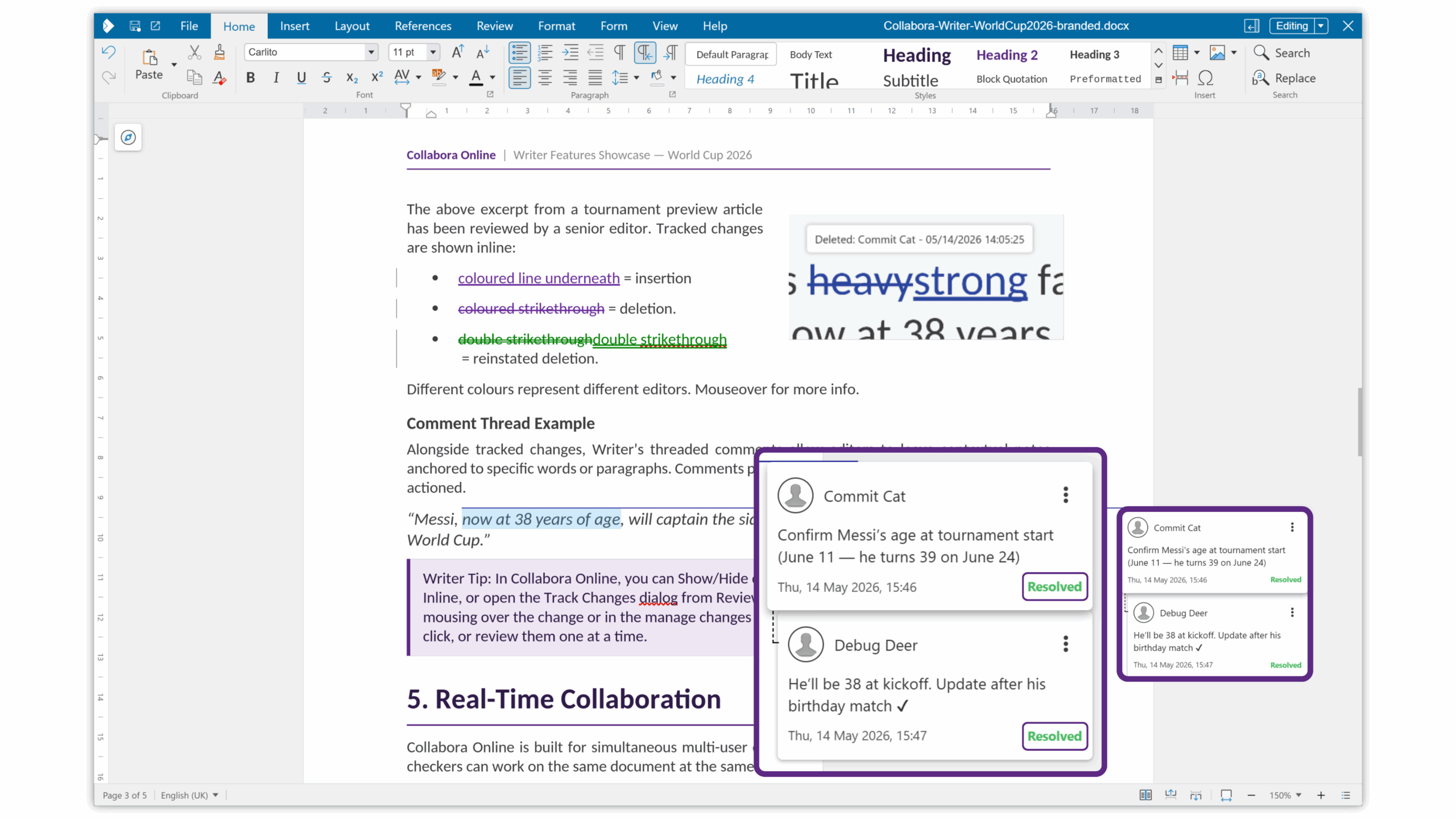
Redesigned Comment Cards – Clearer, more modern collaboration
Comments have been refreshed with a more modern and readable card design, making it easier to interact with comments, or see at a glance which questions have been resolved.
For teams spending long periods reviewing shared documents, these small usability improvements matter. Better comment presentation means less friction, less visual clutter, and a smoother review experience overall.
Smarter Writer Change Tracking & Reinstate Improvements
Tracked changes are now more intelligent and robust, especially where edits depend on one another. This improves reliability in more demanding review workflows, where accepting or rejecting one change can affect others nearby.
Together with reinstate improvements, this makes review cycles more predictable and better suited to real-world collaborative editing.
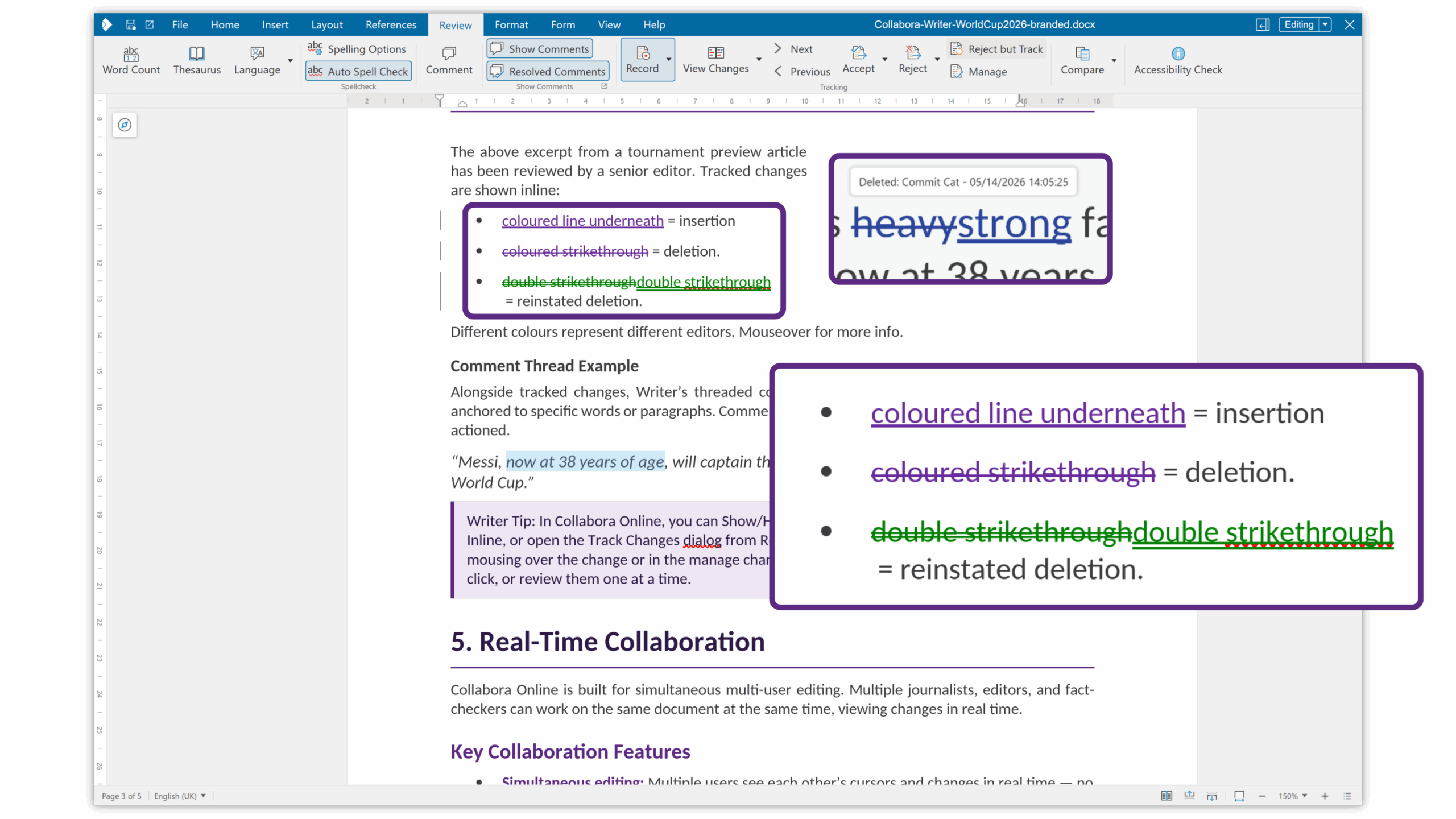
Writer Review Toolbar Reorganisation – Better access to key review actions
The Review tab has been reworked, while command buttons were added for new features, important actions such as comments and spellcheck are easier to reach and behave better in tighter toolbar space.
It is a practical but important improvement: the tools people need most during review are now easier to find, faster to use, and better organised across screen sizes.
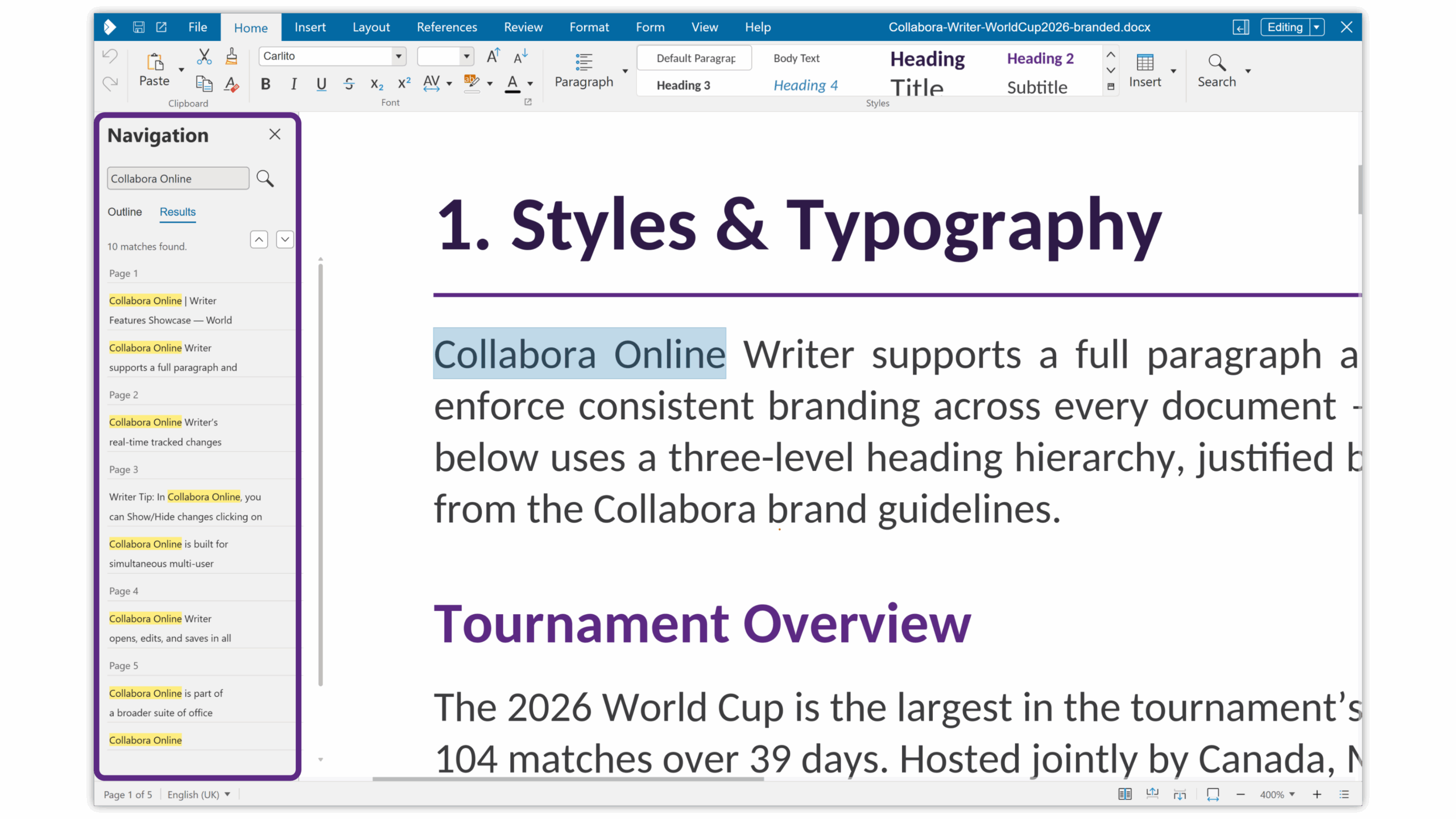
Writer Navigator Search – Faster movement through complex documents
The Writer Navigator now includes search, showing all results and making it much quicker to jump around long or structured documents.
For users working with headings, sections, objects, or large reports, this turns the Navigator into a more powerful tool for orientation and movement rather than just a static outline.
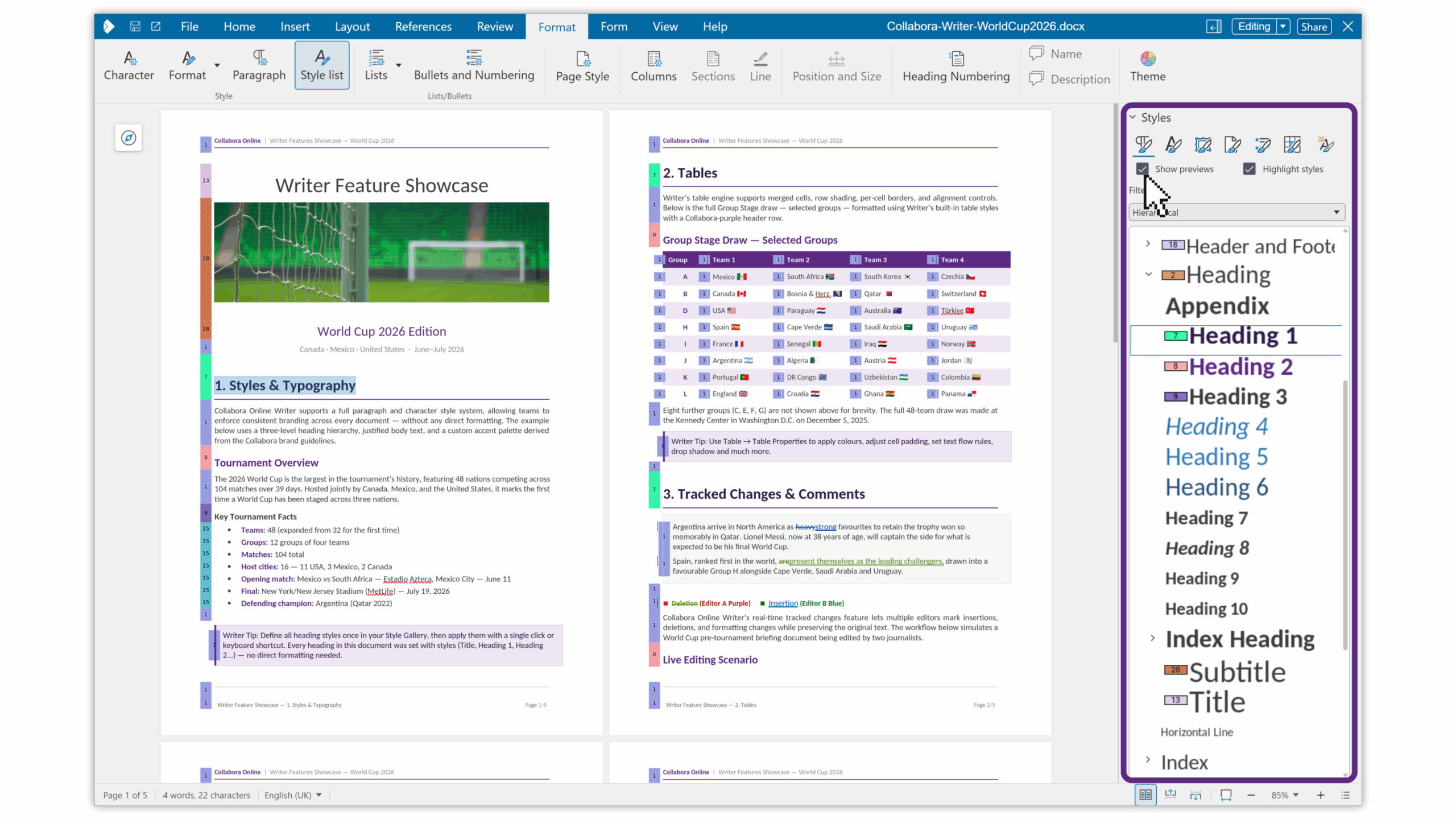
Writer Style Sidebar Previews – More visual control over formatting
The style sidebar now provides richer previews instead of a simple scrolling list. This makes it easier to identify and apply the right style quickly, especially in documents with many different styles.
For anyone trying to keep formatting consistent across a document, better previews help reduce guesswork and improve confidence. Users can create new styles based on a selection or other style and reuse them in the document.
Markdown Support
Writer now supports Markdown import and export, making it easier to move between document editing and documentation-oriented workflows. This is especially useful for users working across publishing, technical writing, developer documentation, or mixed office and text-based environments. It is also extremely useful for including AI generated styled text, which is often in Markdown format.
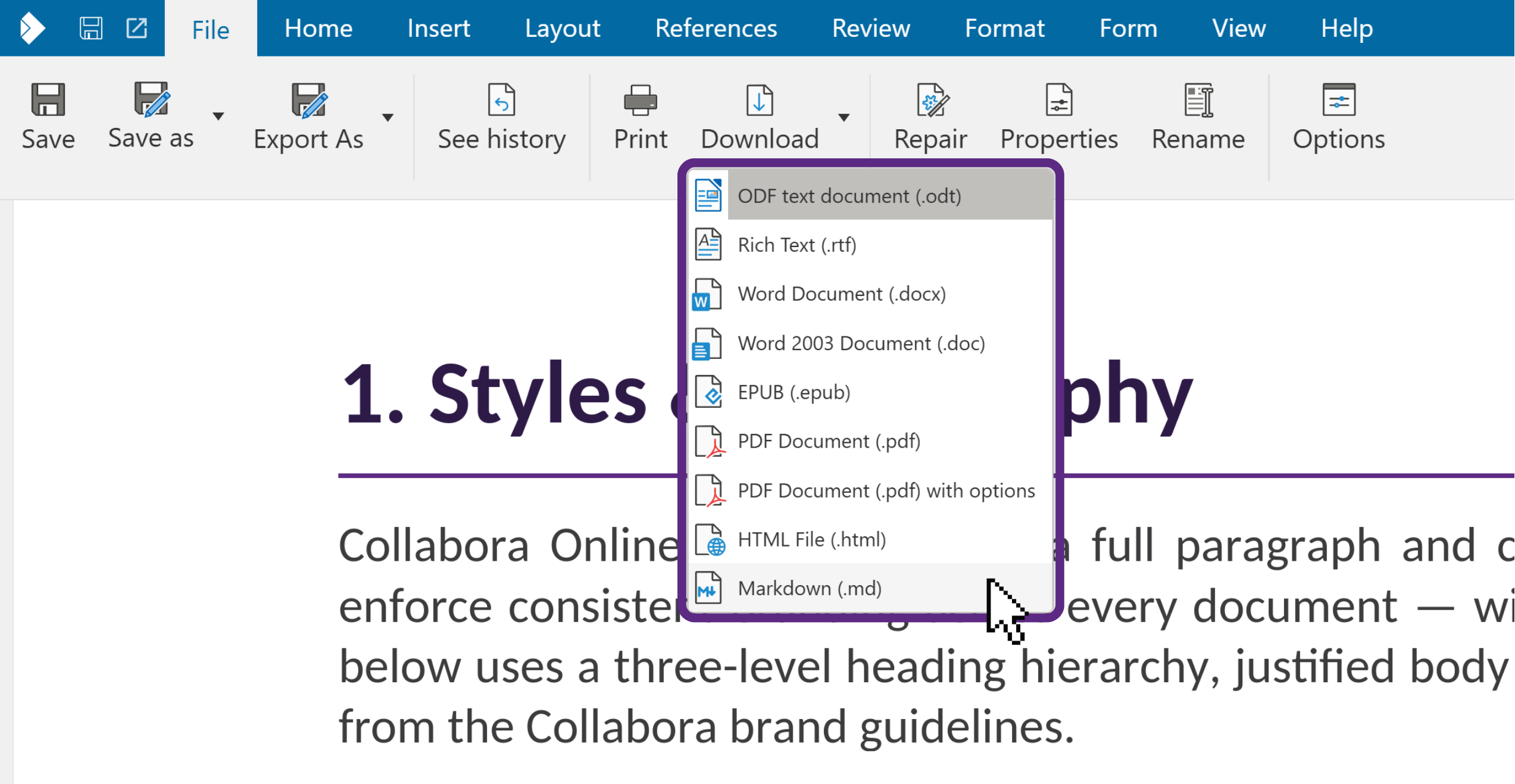
Markdown conversion can also now use a template document, giving API and SDK users more control over the styles of branded and structured output. This is a particularly useful improvement for integrators and developers building automated document workflows, where consistent layout and styling matter just as much as the content itself.
It also makes it extremely easy to apply lots of the power of Collabora Office’s document layout functionality to the problem of printing beautiful Markdown.
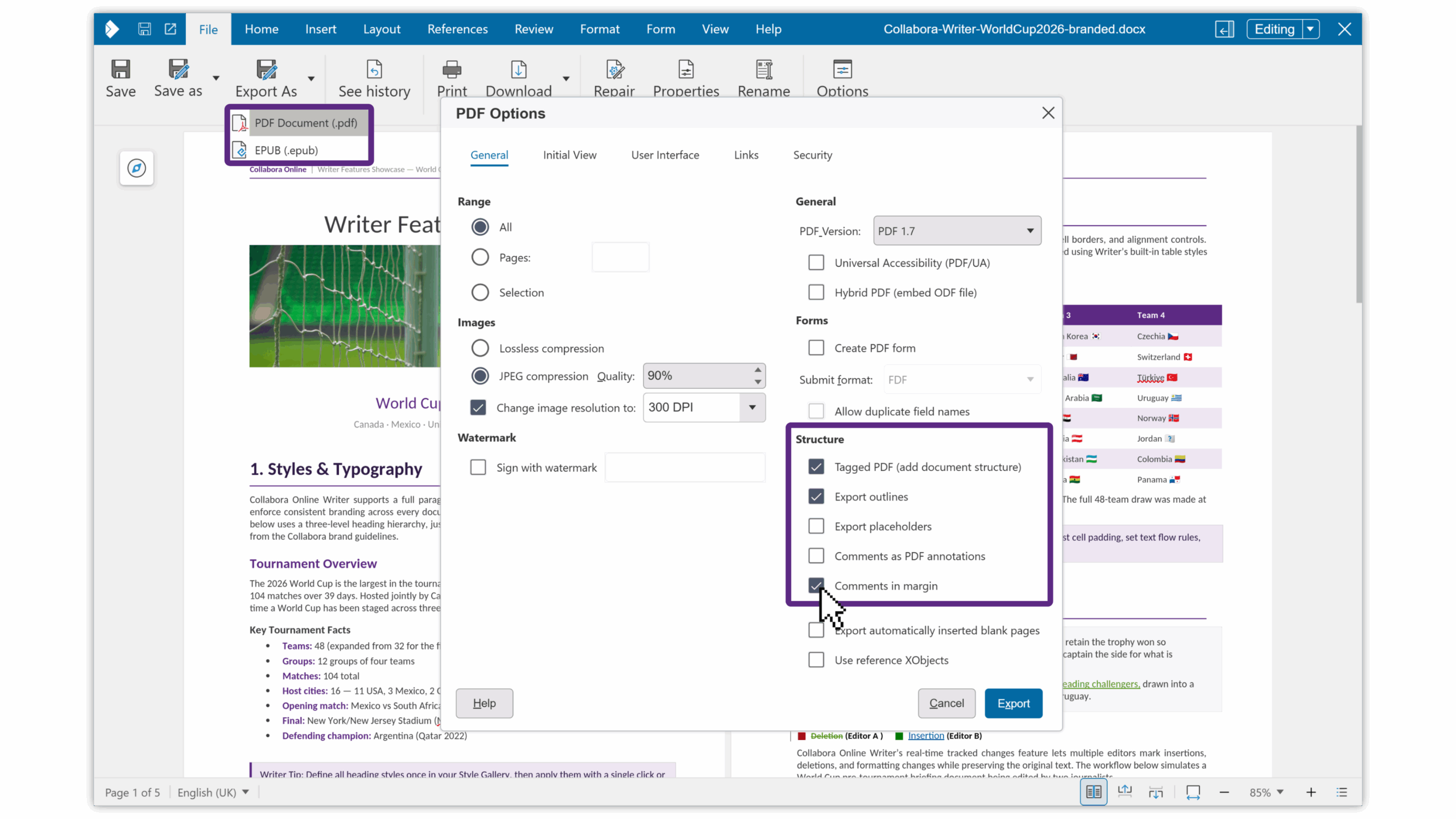
PDFs with Comments as annotations or in margin
In addition to creating a PDF with comments as annotations, PDF export in Writer now supports including comments in the margin, which is especially useful in review and approval workflows, or when printing hard copies.
Instead of losing discussion context at export time, users can now carry comments through into the PDF when needed for external review, sign-off, or archiving.
Review Mode – Controlled review without broader editing
Building on the earlier UserCanOnlyComment mode, a new WOPI UserCanOnlyManageRedlines property introduces a restricted workflow where users can accept or reject tracked changes without broader editing access.
This gives integrators more flexibility when designing controlled review environments, especially where organisations need tight editing boundaries but still want reviewers to help move documents toward approval.
Better Screen Space Usage
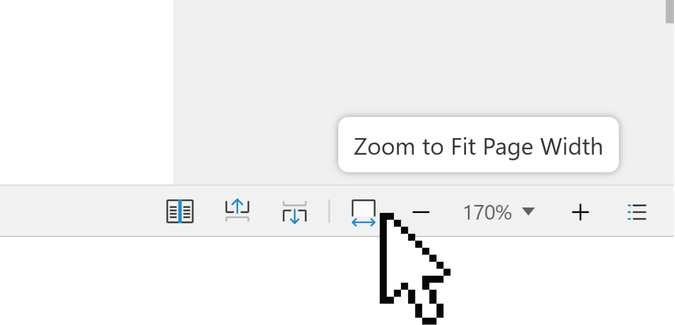
Default document position and zoom level are now more flexible and calculated to use screen space more effectively, taking into account also Navigator, Sidebar and comments.
That means less wasted space, better defaults, and a more comfortable first impression when opening documents across different devices and display sizes.
More Powerful Spreadsheets & Data Workflows
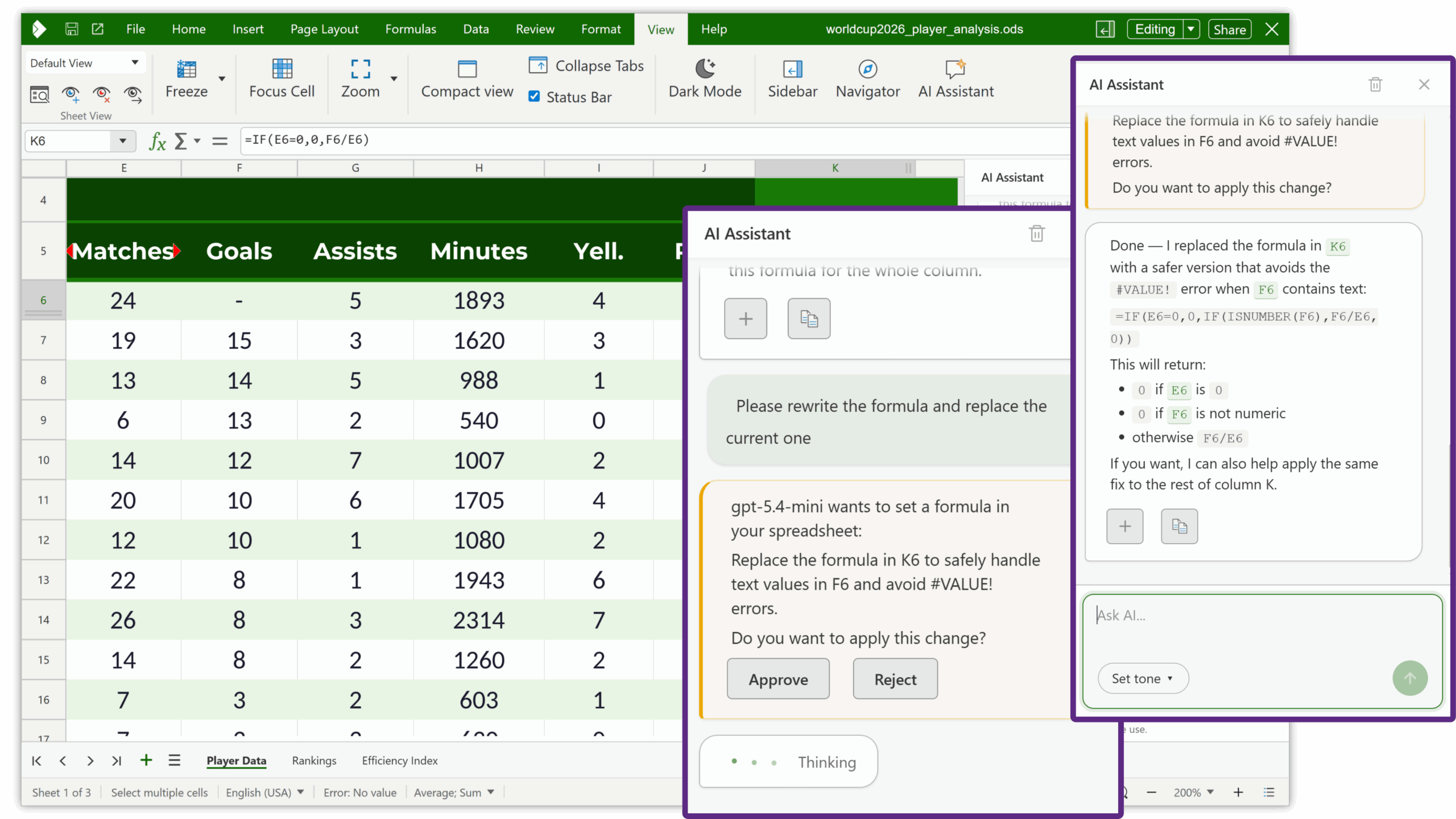
AI Integration in Calc
Calc now also benefits from AI-powered assistance, helping with tasks such as analysing spreadsheet data and troubleshooting formula errors.
For users dealing with complex spreadsheets, this can make formula work less intimidating and data analysis more approachable, especially for occasional spreadsheet users who still need powerful results.
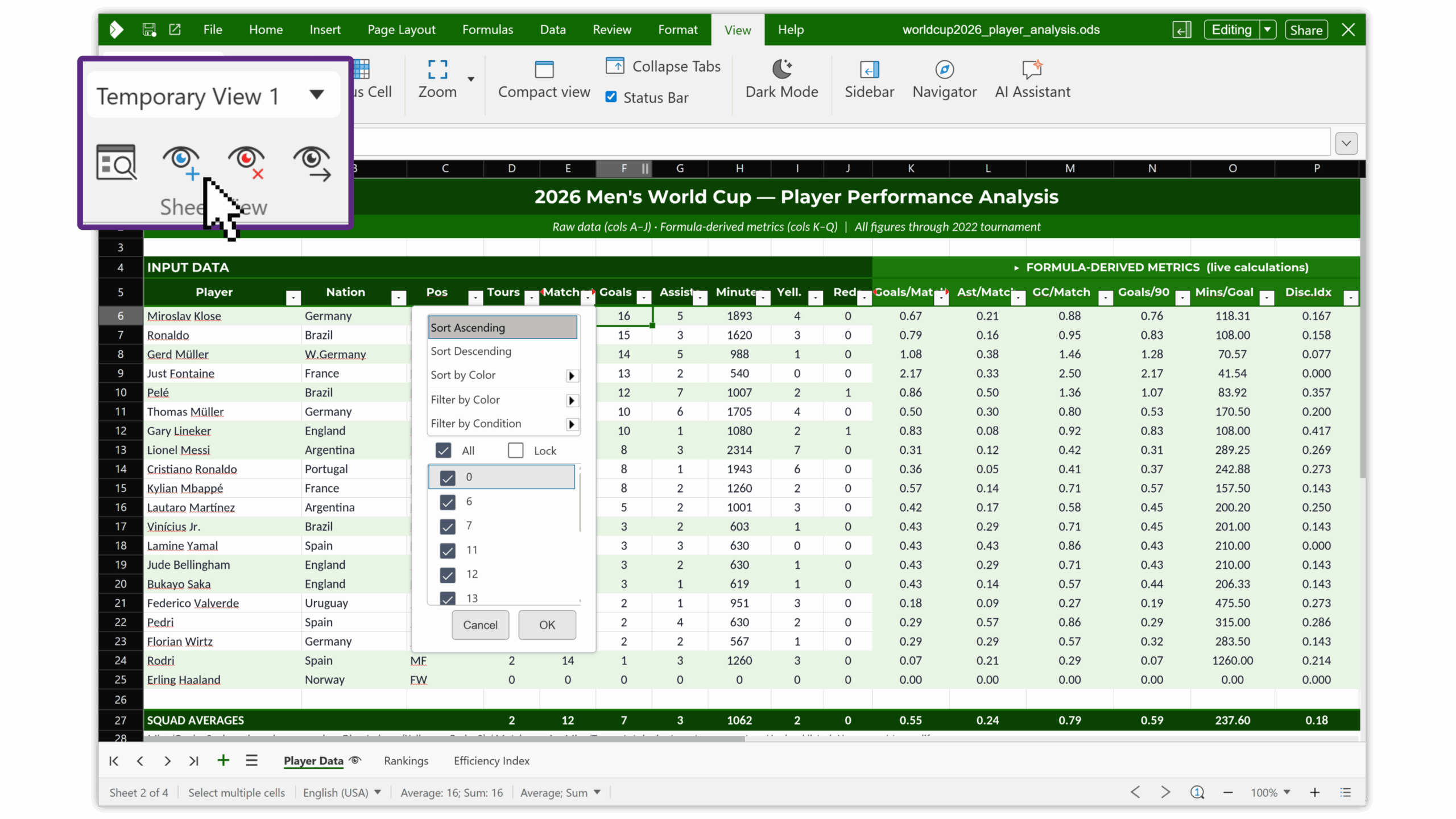
Per-User Spreadsheet View
It is now possible for individual users working collaboratively on shared spreadsheets to create their own sheet view and apply filters or see columns or rows according to their own preferences, without affecting others. This enables teams to work collaboratively on spreadsheets filtering for different variables at the same time, without disrupting someone else’s workflow.
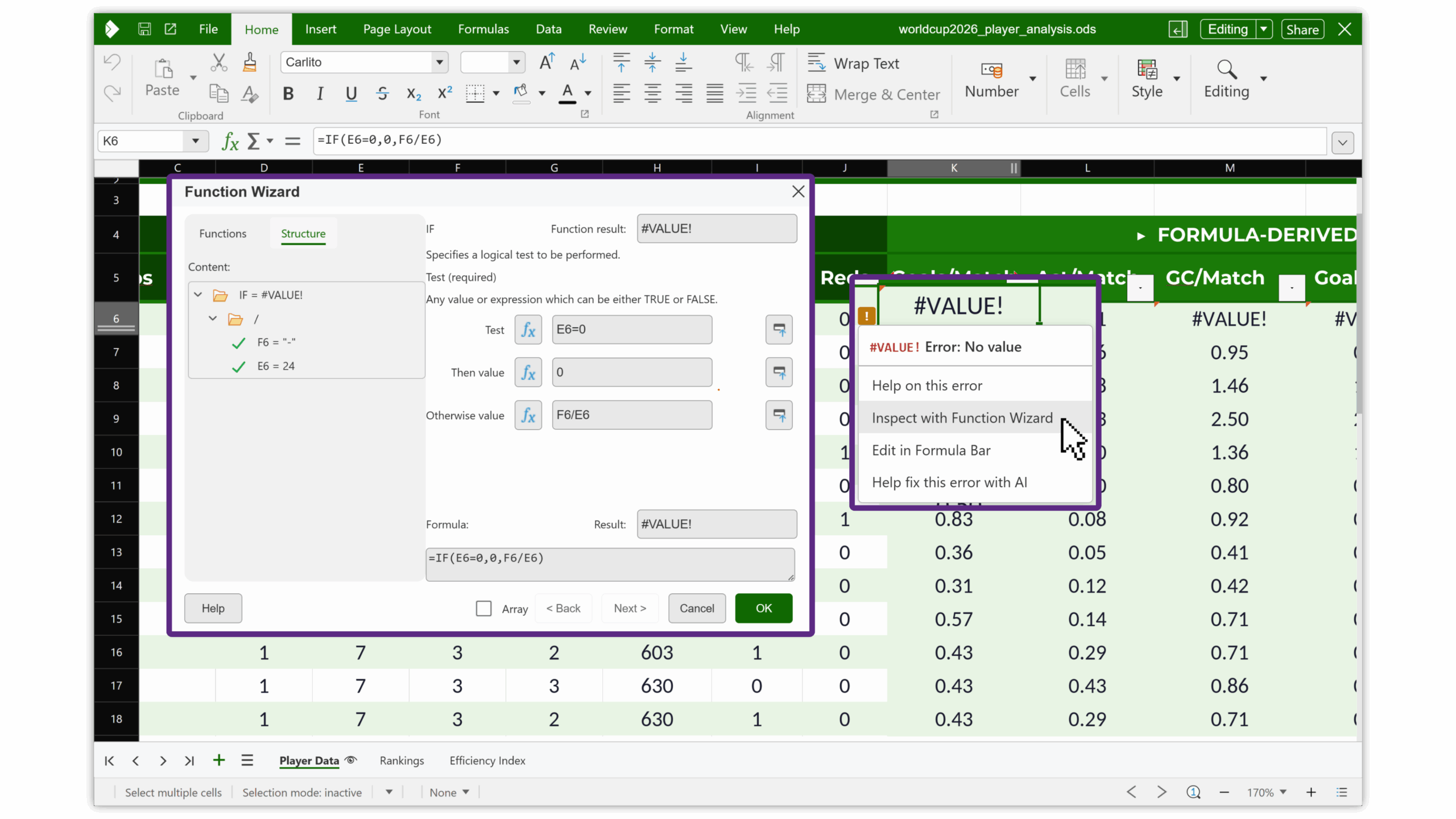
Spreadsheeting: handle formula errors elegantly
To help users diagnose and fix formula errors, a floating exclamation mark now appears next to cells with any errors, opening a menu with different options to help users to inspect, edit and fix the formula.
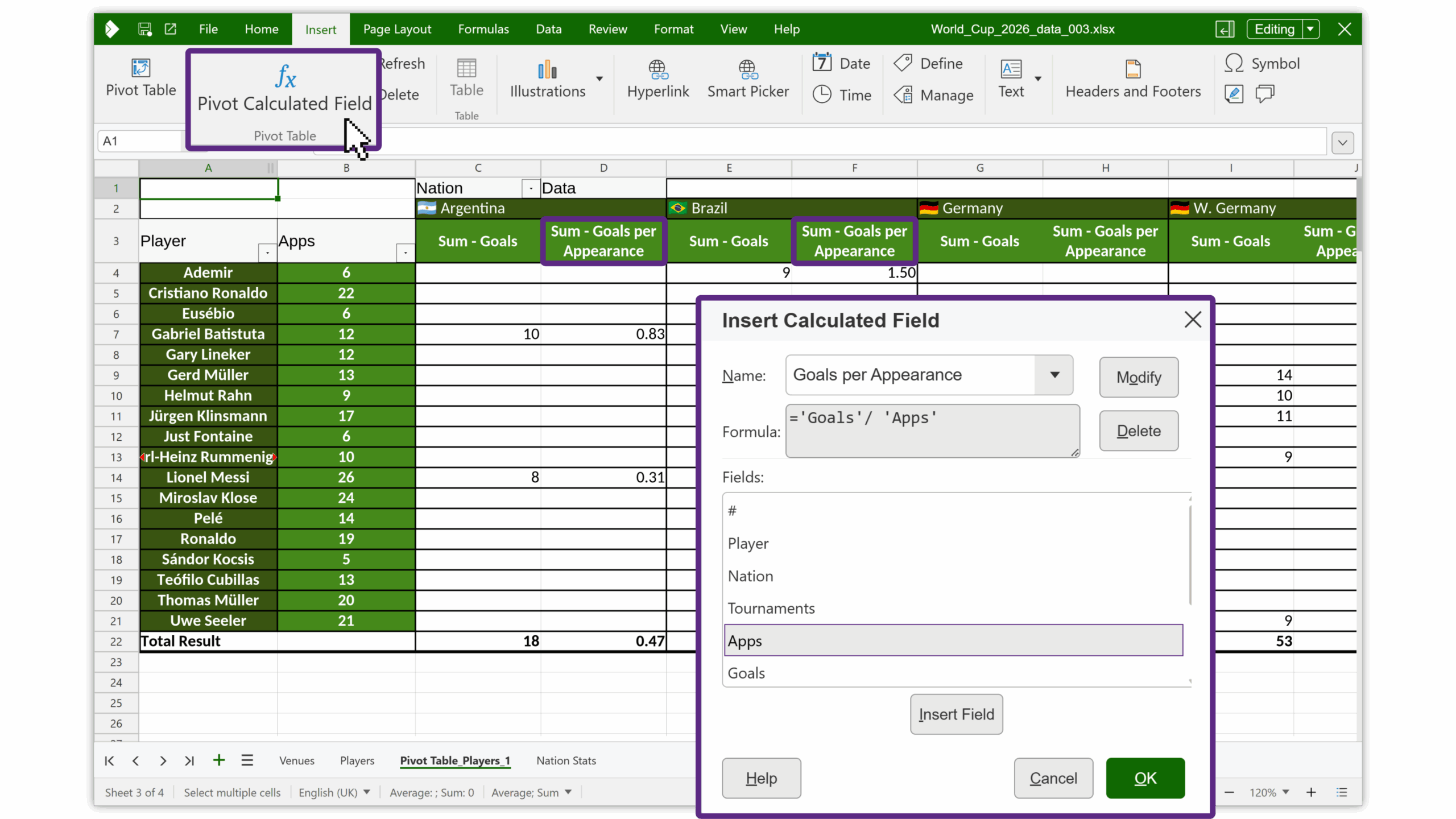
Pivot Tables Calculated Values
Pivot tables aren’t new, but 26.04 introduces support for calculated values in Calc pivot tables, adding an easy way to deal with pivot tables where the desired values may not be in the spreadsheet directly, but those values can be calculated from the spreadsheet data.
This means users are now able to create calculated columns in the pivot table.
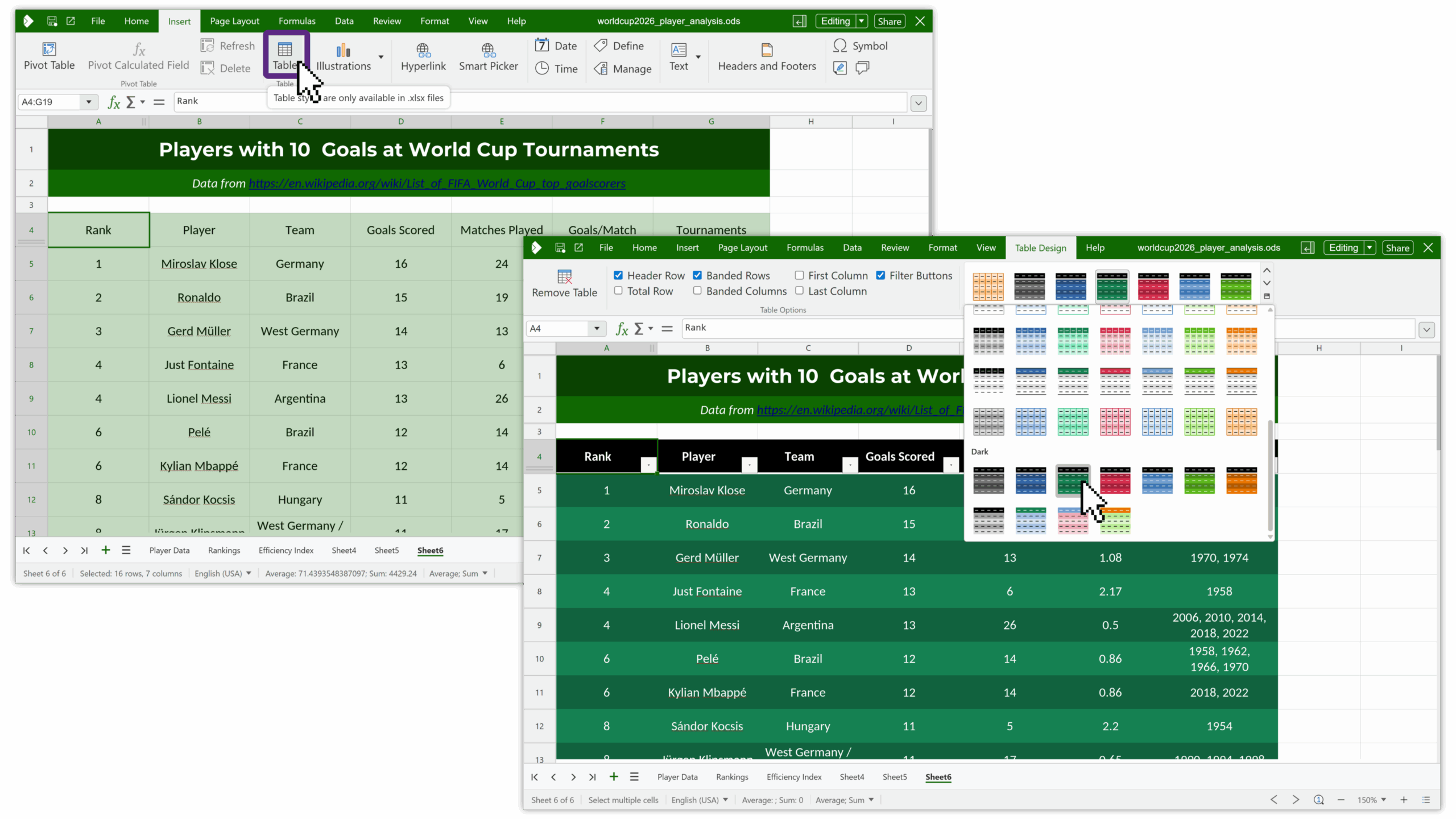
Calc Table Styles – Faster formatting, better interop
Calc now includes ready-made table styles with light, medium, dark, and custom themes, including options like banded rows, headers, and totals.
This not only speeds up formatting but also improves interoperability with other editors for .xlsx files, helping spreadsheets preserve expected table styling more accurately across environments.
Work is under way to fully support this feature also for .ods files.
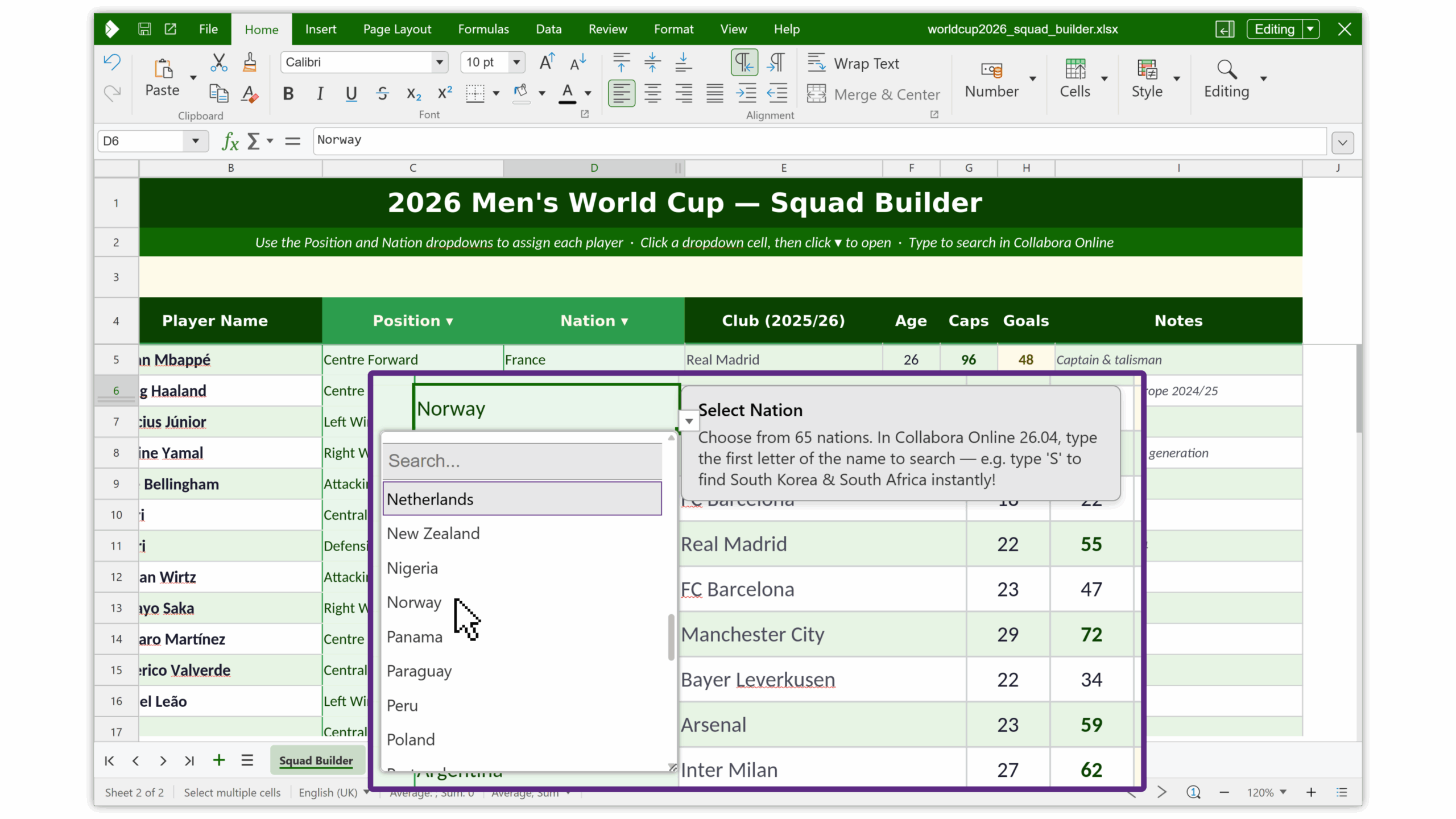
Smarter Dropdown Lists in Calc
Dropdown list controls in spreadsheets have been improved to behave more intuitively.
These kinds of small interaction improvements add up quickly in spreadsheet work, especially when forms, validation, or structured data entry are involved.
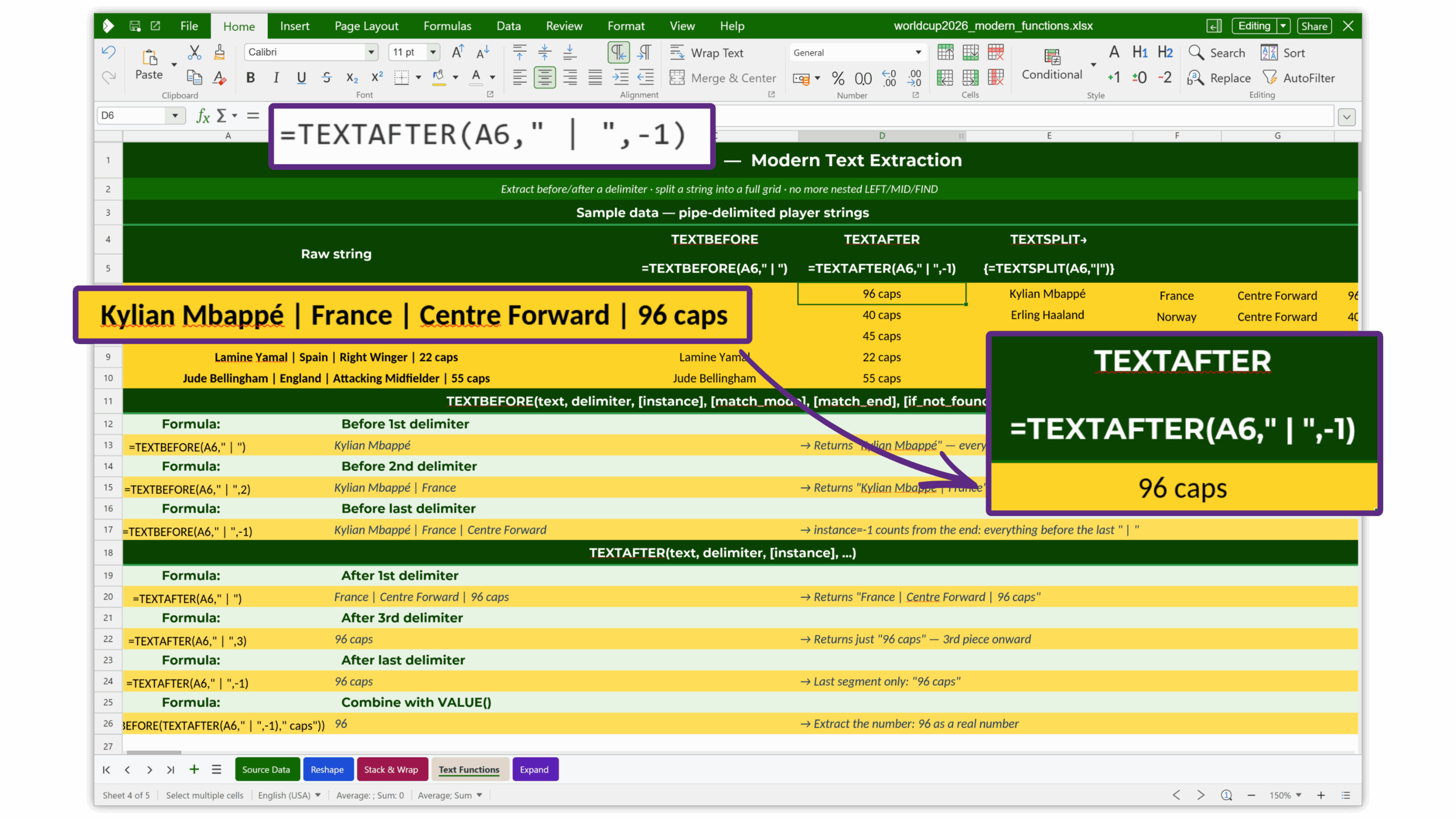
New Calc Functions – More modern spreadsheet capability
Calc adds newer spreadsheet functions including CHOOSECOLS, CHOOSEROWS, DROP, EXPAND, HSTACK, TAKE, TEXTAFTER. TEXTBEFORE, TEXTSPLIT, TOCOL, TOROW, VSTACK, WRAPCOLS, WRAPROWS.
These functions make it easier to reshape, extract, and work with data in more modern ways, while also improving compatibility with spreadsheets created elsewhere.
JSON-Based CSV Conversion API
A new JSON-driven CSV conversion API gives integrators a cleaner, more structured way to handle CSV conversion workflows and thus fixing high number token issues.
For developers building integrations or automation pipelines, this should make CSV handling more predictable and easier to control.
Improved Copy and Paste from Array Formula Results
Copying and pasting result values from selected array formula cell ranges now works more naturally, without requiring the whole range to be selected first, so long as at least one origin cell is included.
It is a subtle but welcome improvement that makes everyday spreadsheet editing feel less rigid and more intuitive.
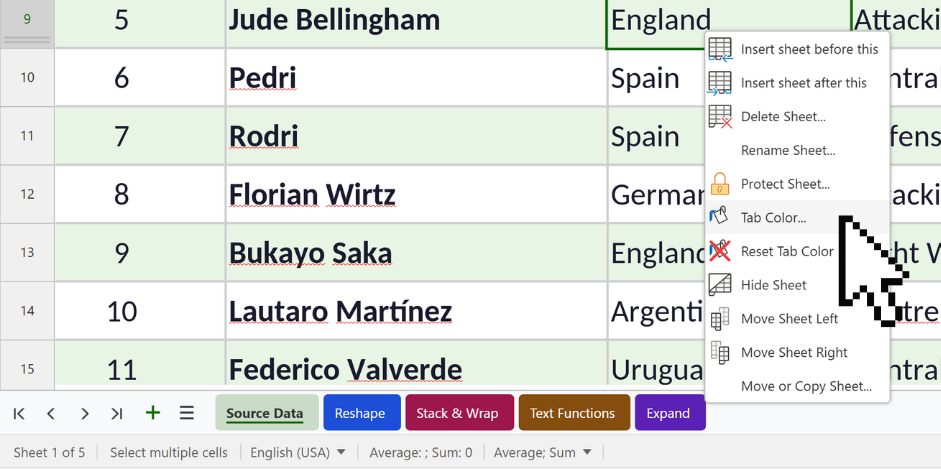
Coloured tabs
You can now right-click a sheet tab, choose Tab Colour, and assign a colour. This is saved in the file and remains interoperable, so the coloured tabs can be read by other software and imported from third-party files.
Better Presentations & File Fidelity
AI Integration in Impress
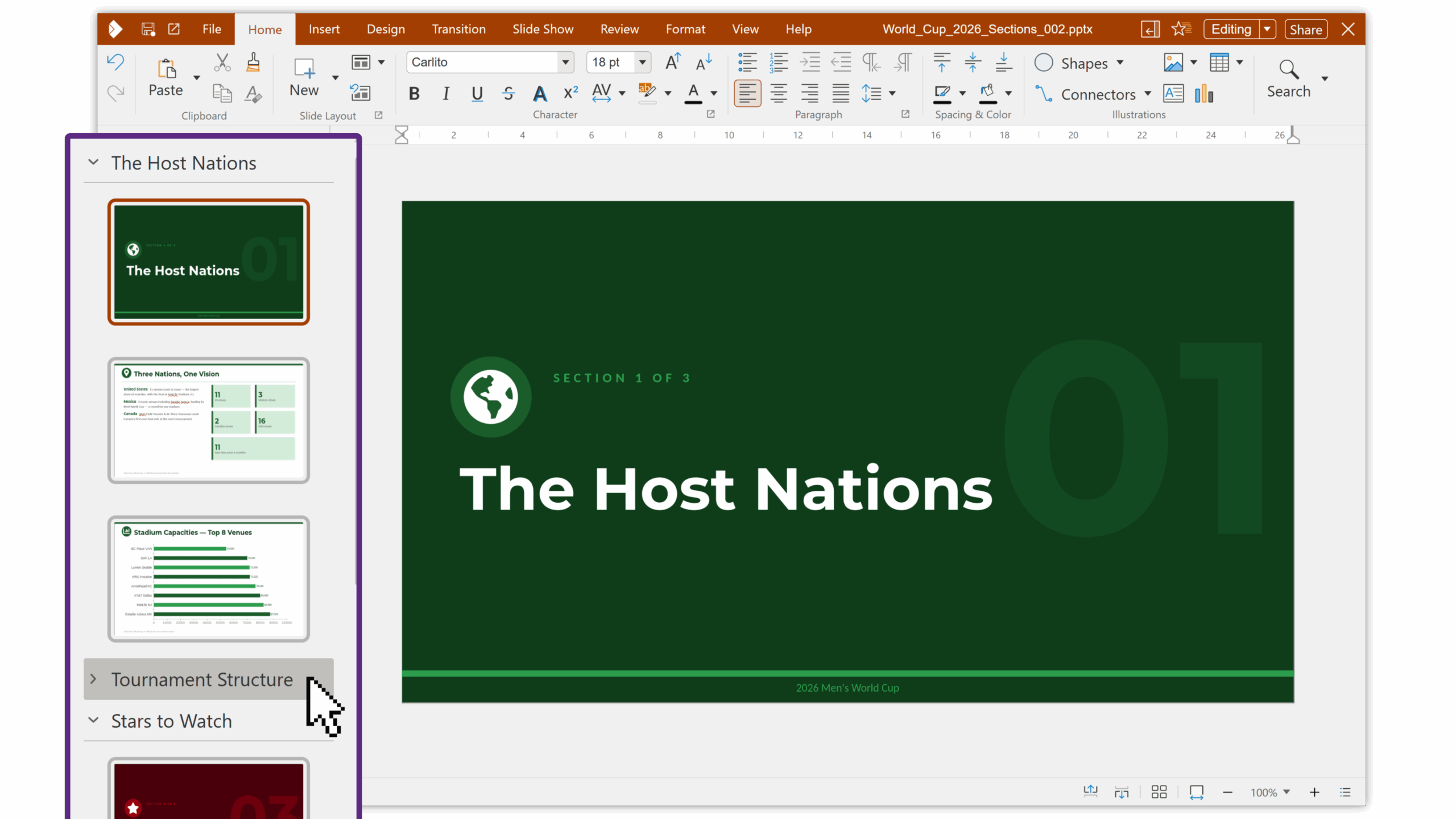
AI support in Impress helps users create presentations more efficiently, from early research through to slide preparation. It can help verify and summarise information, convert paragraphs into presentable bullet points, and turn rough ideas into clearer presentation content that is easier to shape into slides.
This is especially useful when starting from longer source material such as reports, notes, or briefing documents, making it faster to build structured, audience-friendly presentations while leaving the final review and design decisions in the hands of the presenter.
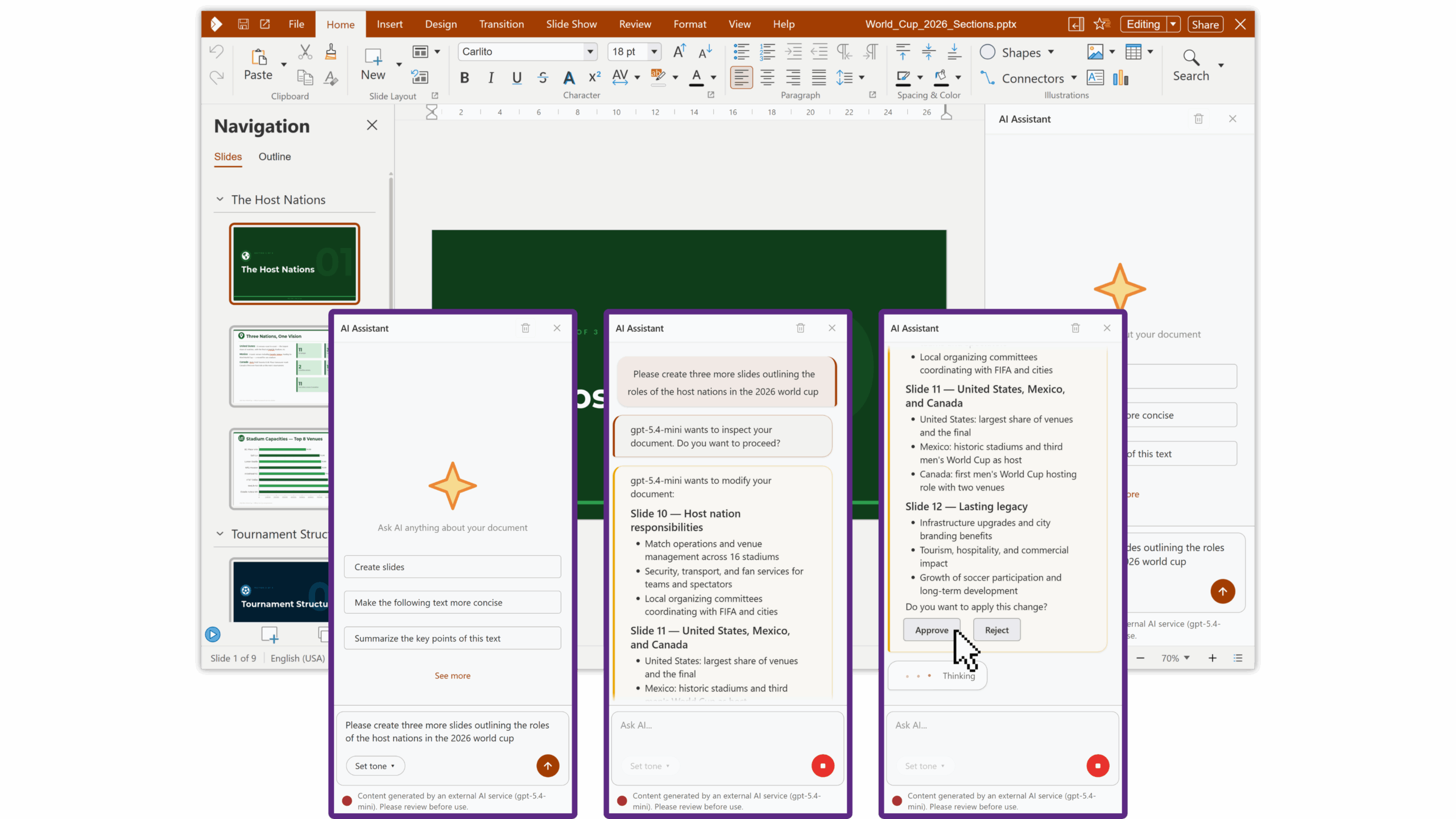
Present to All / Follow-Me Slideshows – More reliable collaborative presenting
Collaborative presentations are now more interactive. The presenter starts a presentation, and it can automatically begin for the viewers. Their view will update automatically as the presenter steps to the next slides. If a viewer wants, they can stop the follow mode and independently scroll back within the presentation (asynchronous mode). This enables presentation viewers to check back through slideshows for information they may have missed or want to reference quickly, before returning to the presenter’s view. The presentation viewer cannot go ahead of the leader.
For classrooms, remote training, guided walk-throughs, or just regular boardroom presentations, this means a more advanced presentation experience for all.
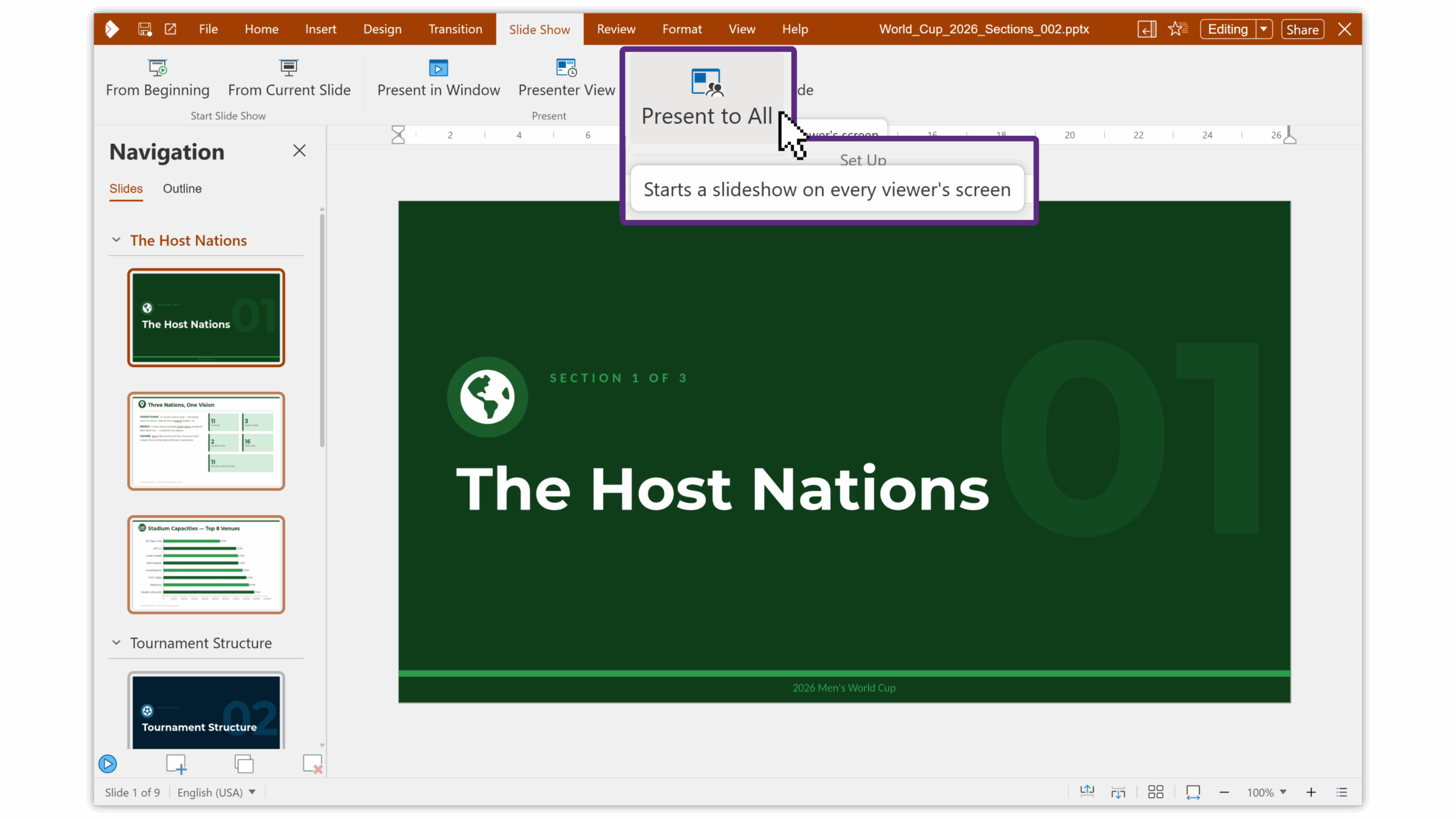
Multiple Slide Sizes in One Presentation
Presentations can now contain slides of different sizes in the same file. This gives users more flexibility in building mixed-format presentations, especially where content from different sources, templates, or display formats needs to live together.
This is especially useful when viewing complex PDFs that contain mixed page sizes, where preserving the original layout matters – rather than forcing everything into a single uniform format.
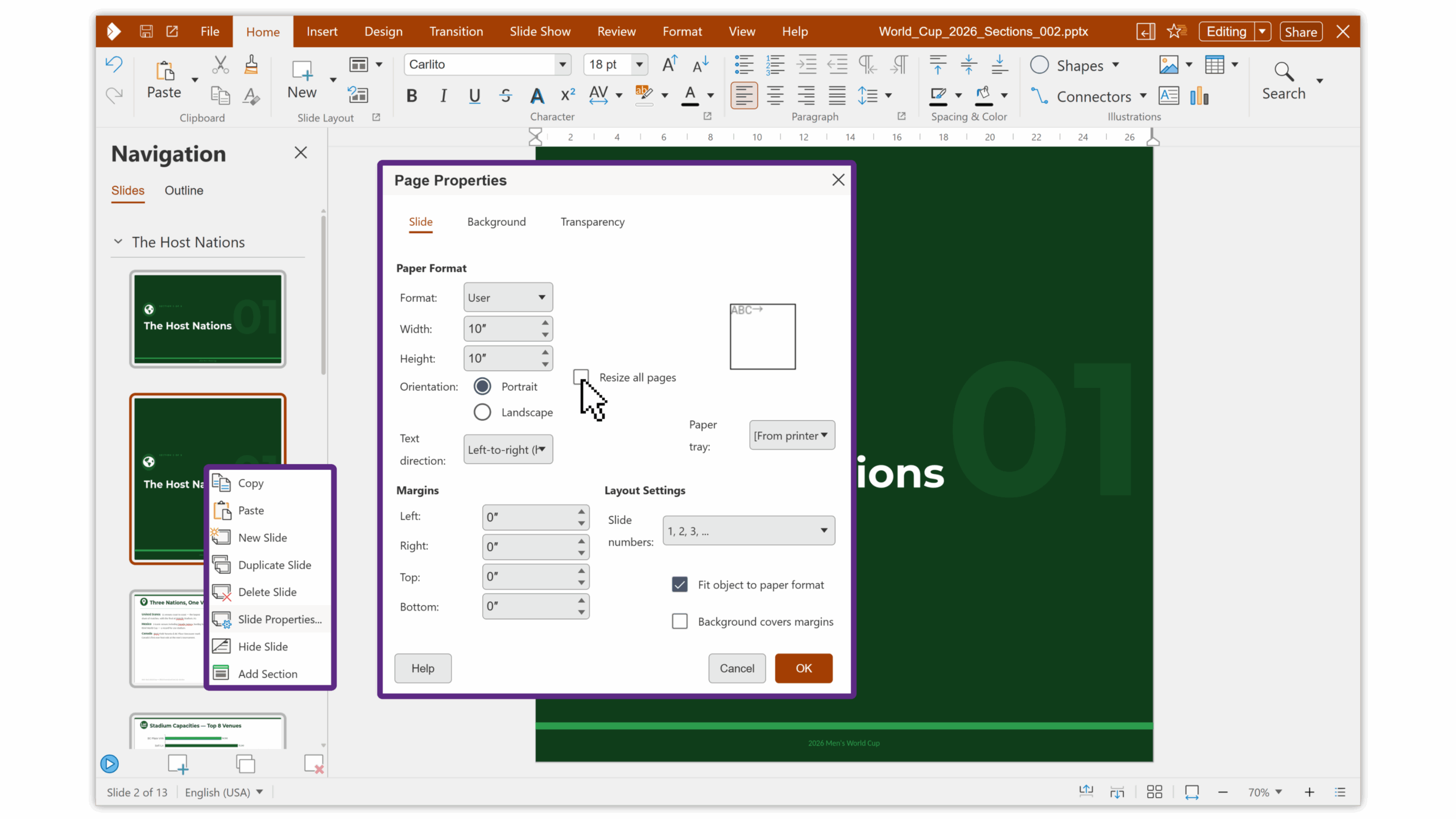
Slide Grouping into Sections
ODP presentations now support overview pages, enabling a more flexible presentation structure with slides organized into sections.
This can be useful for navigation, summaries, and more dynamic presentation design, particularly in longer or more complex slide decks.
User Experience, Accessibility & Platform Improvements
Accessibility
We have made significant accessibility improvements so that users relying on screen readers, keyboard navigation, or other assistive technologies can work more effectively with documents. This more recently has led to our BITV 2.0 certification by the German accessibility regulator.
- Colour pickers, line style selectors, numbering options, bullet choosers, and special character dialogs – previously invisible to screen readers – now announce each item individually, allow arrow key navigation, and respond to keyboard selection.
- Across dozens of dialogs in Writer, Calc, Impress, and shared settings, form controls like spinfields, dropdowns, and checkboxes now have proper labels read aloud by screen readers, so users hear descriptive text like “Width” or “Font size” instead of just a raw number.
- Buttons with ambiguous names have been further clarified so users can distinguish between actions without guessing.
- Keyboard-only users can now navigate toolbars, sidebars, grids, trees, radio groups, and tab panels entirely without a mouse, with consistent arrow key and tab behaviour throughout. Focus no longer jumps unexpectedly between the sidebar and open dialogs, and comment editing is fully keyboard-accessible.
- An automated testing framework also now validates every dialog, sidebar, and toolbar for correct labels, roles, and keyboard behaviour, catching regressions before they reach users.
Together, these changes mean that users of assistive technology can access more of the features mouse-and-keyboard users enjoy – picking colours, formatting text, inserting content, navigating document structure, and configuring settings – with proper announcements, logical focus order, and reliable keyboard control throughout.
Interop
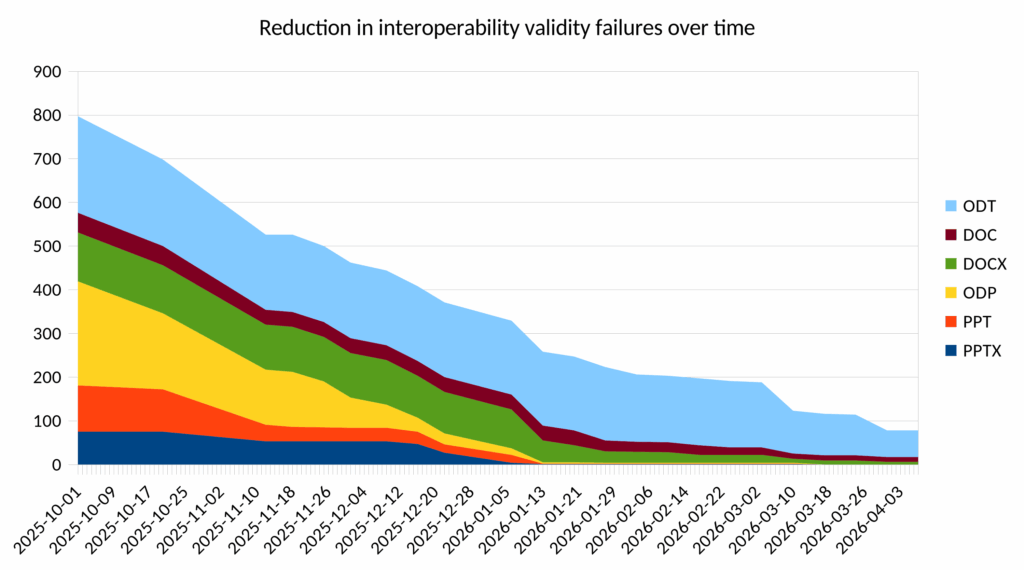
We continue to make great progress in improving our already excellent OOXML file format interoperability, ensuring documents created with Microsoft Office can be opened, rendered, saved, and then returned to a Microsoft Office work environment without loss in data or functionality. This includes implementing new features, and making changes to our rendering engine to stay in line with Microsoft’s behaviour.
Over the past year we have been focusing on validity testing of about 243,000 documents, spreadsheets and presentations in various formats converted to the corresponding OOXML format, with the goal of getting to zero. The following chart shows the progress over the last few months for text documents and presentations.
Arguments suggesting that because we encourage usage of ODF, we must therefore not be appropriate for use with .docx or .xlsx are poor and don’t stand up to scrutiny. Just because we’re great at ODF doesn’t stop us being great at interop too!
Menu Bar Grouping and Tooltips
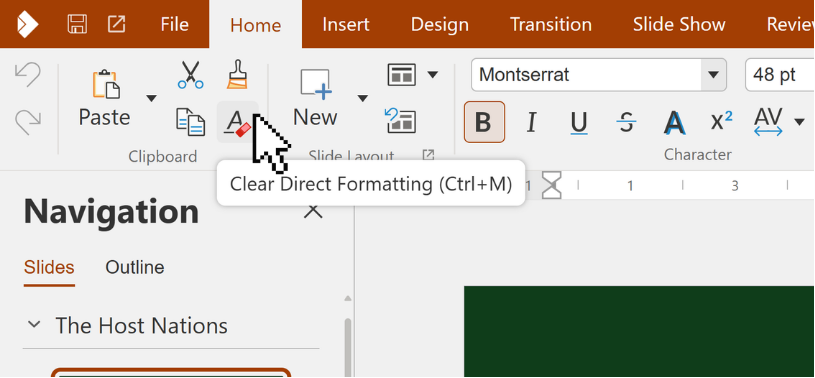
Notebookbar tabs and overflow behaviour have been improved with better grouping, labels, and dropdown handling to better fit the screen.
This helps the interface stay clearer and more usable, especially as features continue to grow, and users work on varying screens sizes.
Additionally, notebookbar tabs now have tooltips to describe more clearly what a feature does.
In-App Settings Dialog
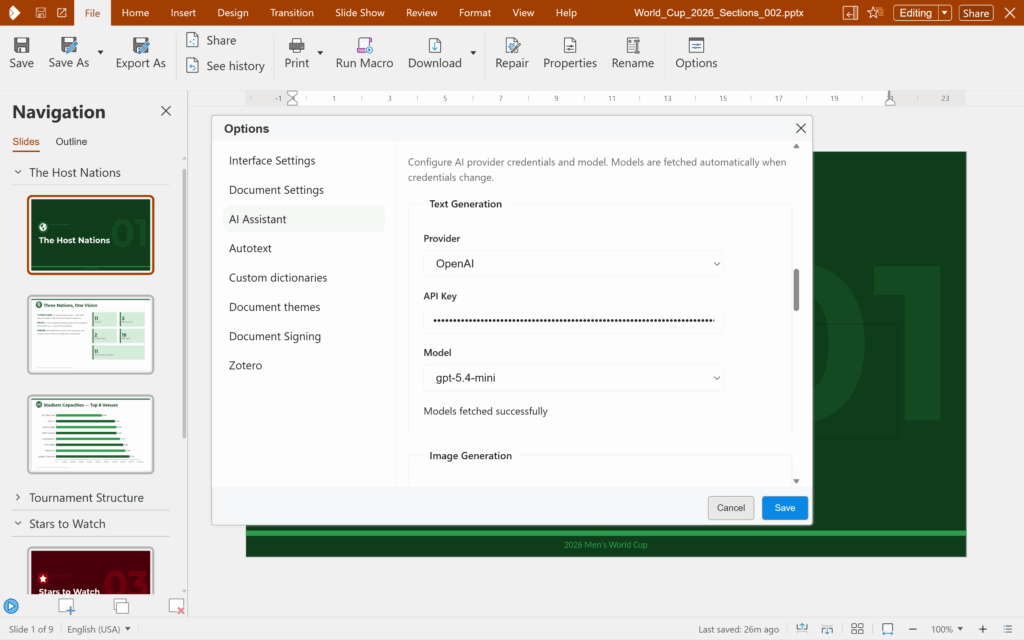
An in-app settings dialog has been added, meaning users can edit application settings usually found in the EFSS administration settings directly from the document editor interface, avoiding having to go to the integrator’s interface.
That means less hunting for dictionary, document signing, display and dark mode settings, easier changing of AI model settings, and a smoother overall experience when configuring the editor.
View Mode as Default
If needed, documents can now initially open in view mode for selected file types, with users switching to editing mode if needed.
This gives administrators and integrators more control over default document behaviour, which is especially useful for minimising accidental changes to files without entirely locking documents down.
Filter Fonts by Typing
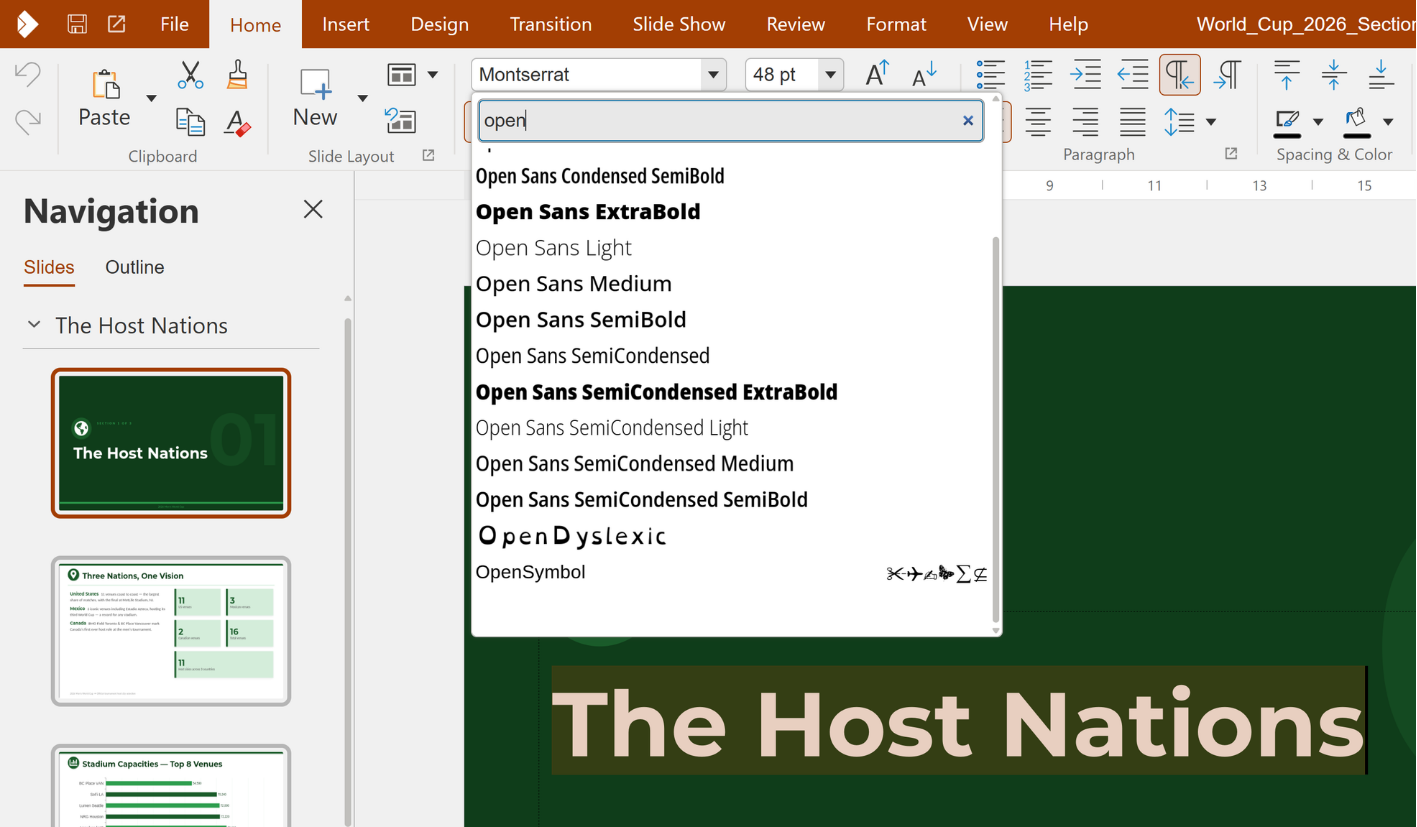
In the Tabbed UI, users can now filter fonts by typing part of the font name directly into the font dropdown.
It is a simple quality-of-life improvement, but one that saves time constantly for anyone working with formatting.
OOXML Templates Open for Editing
OOXML file format templates that previously opened read-only can now open in editing mode.
This improves template-based workflows and removes an unnecessary barrier for users working in mixed-format environments.
PDF View-Dependent Re-rendering – Sharper zoom, smarter memory use
PDF rendering now adapts to zoom level, keeping the view sharp when zooming in while using memory more efficiently when zooming out.
This improves the experience of working with PDFs in the browser, making navigation and inspection smoother without wasting server resources.
Toggle Status Bar Visibility
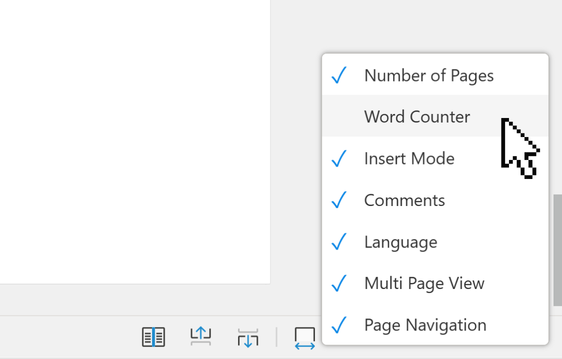
To provide users with more control over their interface, we implemented a right-click context menu in the status bar to allow users to manually show/hide specific indicators based on their preferences.
Save Images from Docs
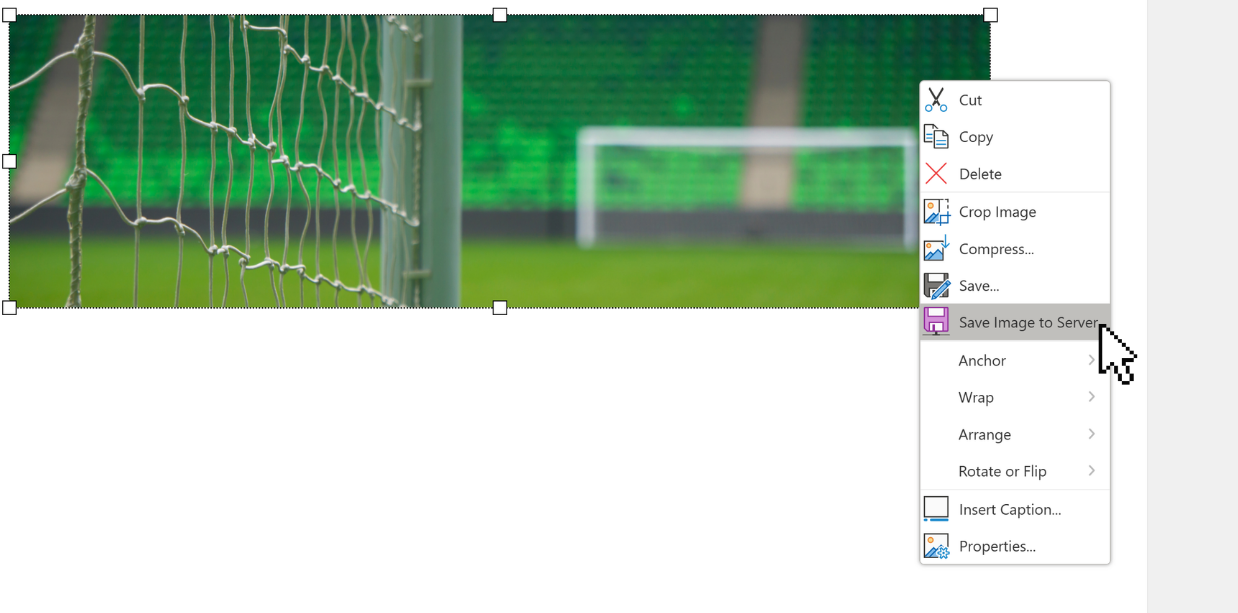
In 26.04, you can quickly and easily download graphics from documents. Simply right click an image, and choose to save it. This is useful in many cases where documents are to be ‘transposed’ into a new medium, for example uploading blog posts with images onto a website.
Summary
From AI-assisted writing and spreadsheet analysis to stronger review workflows, better presentation fidelity, and a more polished interface, this release brings together practical usability wins, meaningful interoperability improvements, and new tools for both end users and integrators.
Try out CODE 26.04 today, explore the new features, and let us know what you think. Your feedback helps shape the future of open-source, privacy-focused office collaboration.
Community
Collabora has invested significantly in bringing a host of new features and functionality to this latest release and contributes a vast majority of the Collabora Online code. However, we want to acknowledge all of our friends and colleagues in the wider community who helped to contribute not only to this, but also to all the historic contributors to the underlying technology upon which CODE and Collabora Online are built. This all contributes to our mission to “Make Open Source Rock”, while also being a sustainable, growing business.
All of our code is open source and available to the public on our Gerrit server. Join the Collabora Online Community, take part in easy hacks and discussions in the forum.
CODE 26.04 is built upon the code commits up to LibreOffice 25.8 and LibreOffice 26.2.
About Collabora Productivity
Collabora Productivity delivers Collabora Office, a business-hardened, open-source office suite providing seamless document editing and collaboration across web, desktop, and mobile platforms. By supporting all major file formats and integrating directly into your own infrastructure, it ensures total data sovereignty and GDPR compliance for modern distributed teams. Backed by the largest team of Open Source Office productivity engineers globally, Collabora Productivity, alongside a global network of trusted partners, offers a secure, high-performance alternative to big-brand solutions for organisations at scale.