


Stephan Bergmann
An introduction to a still-experimental extension surface in Collabora Online: what an extension looks like on disk, how it shows up in the UI, and how it talks to the document running inside the kit.
The extension framework described here is gated behind the experimental_features flag in coolwsd.xml. Treat it as “preview/API not frozen”: the format will reach 1.0 in a later release; until then the manifest is 0.1, deploys are manual, and the JavaScript surface in cool.js is still being shaped.
Anatomy of an extension
An extension is a directory dropped into the installed COOL’s browser/dist/extensions/. That’s all for now: Drop the directory in, restart coolwsd, and your document tabs grow an “Extensions” entry that lists whatever manifests the server found (and whose supports entries match the current document type).
The minimum needed inside that directory:
extensions/
└── com.example.my-first-extension/
├── manifest.json
├── icon.svg
└── index.html
The manifest is the bare minimum that COOL needs to identify and load your code. Version 0.1 of the format has just five keys:
					{
    "manifestVersion": "0.1",
    "name": "My first extension",
    "entry": "index.html",
    "icon": "icon.svg",
    "supports": ["text", "spreadsheet", "presentation", "drawing"]
}
- manifestVersion: literal string “0.1” for now. The server skips manifests it doesn’t recognise.
- name: short, human-readable text shown wherever the user sees your extension (the Extensions notebookbar tab, the menubar submenu, the sidebar panel header).
- entry: HTML file the iframe loads. Path is relative to the manifest’s directory.
- icon: image displayed next to the name. Any browser-supported format (SVG, PNG, …). Again, path is relative to the manifest’s directory.
- supports: which document types your extension applies to. Absent or empty means “all four”. Use this to e.g. hide a spreadsheet-only extension from Writer documents.
The reverse-DNS directory name (com.example.my-first-extension) is what COOL uses internally as the extension ID. Pick a stable one; it’ll show up in URLs, dispatcher commands, and any future state COOL persists about the extension.
How it appears
After deploying an extension and reloading the document, the user sees three new entry points:
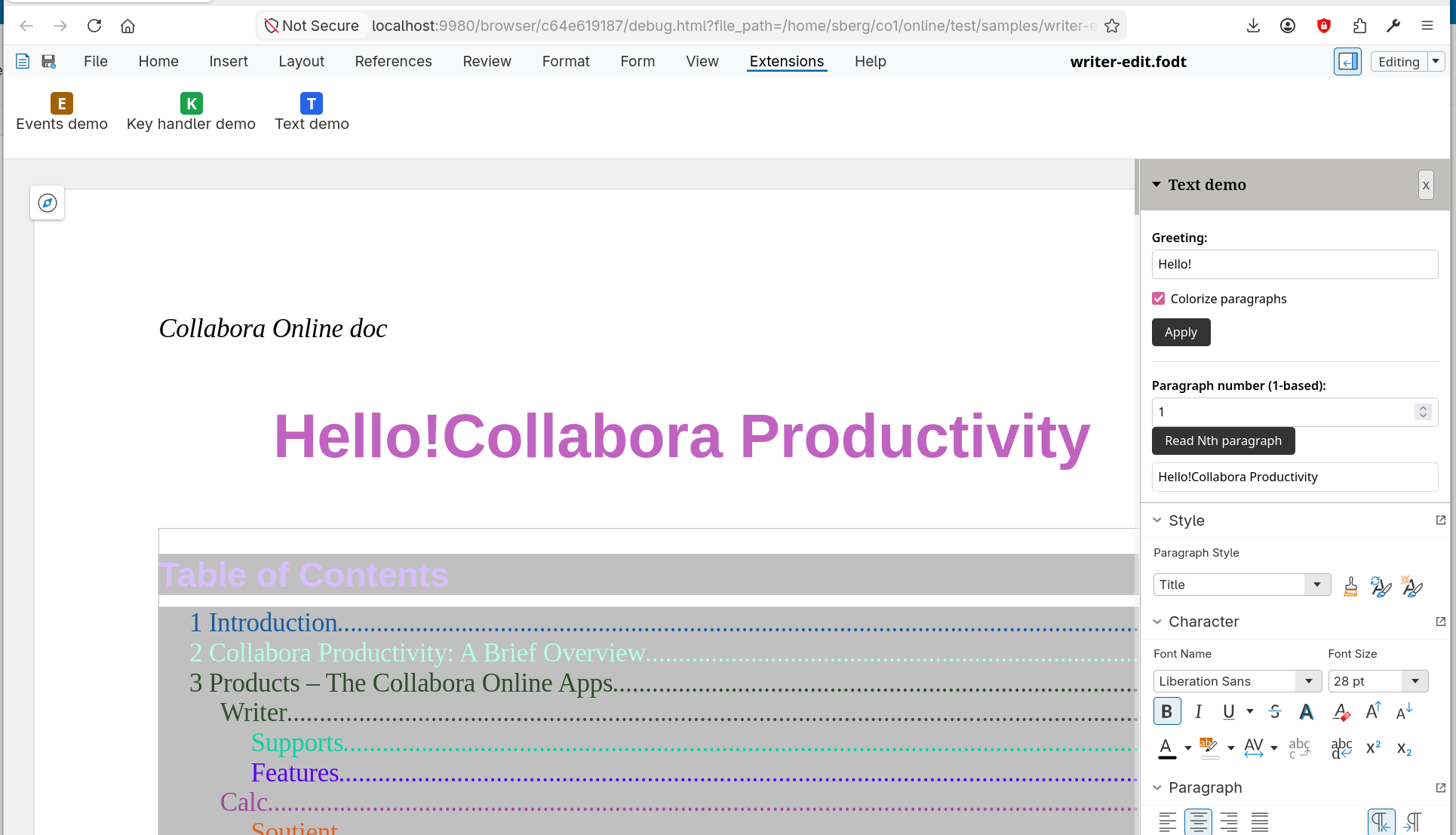
- An Extensions tab at the end of the notebookbar’s tab row (in Tabbed View) with one large tile per extension: your name on top of your icon. Clicking it opens the extension.
- An Extensions submenu in the menubar (in Compact View), appearing just before Help, with one action per extension.
- A foldable sidebar panel that opens when the user clicks an extension entry. The panel sits above whatever core sidebar deck (Properties, Styles, …) is currently shown, so your UI and the document’s regular sidebar coexist instead of fighting for space.
The sidebar panel embeds your entry HTML in an iframe. The iframe is sandboxed (allow-scripts allow-same-origin allow-forms allow-popups), so your UI can use the full browser surface—React, fetch, IndexedDB, whatever you like—but it’s isolated from the document’s own JavaScript. The two sides only talk through the messaging helpers in cool.js (see below).
A small “×” closer in the panel header runs a teardown handshake so your extension can detach any UNO listeners it registered before the iframe is removed. Re-opening the extension afterwards loads a fresh copy.
Talking to the document: cool.js
The interesting half of writing an extension is doing things to the document the user is editing. COOL ships a small JavaScript helper at browser/dist/extensions/cool.js that the iframe loads via a relative script tag:
<script src=“../cool.js”></script>
The helper exposes a cool global with two main entry points:
cool.callRemote(fn, …args) ships a self-contained JS function to the kit process running your document, executes it there in a JS-UNO context, and returns a Promise that resolves with the function’s return value (JSON-encoded over the wire).
cool.document.on* property-assignment hooks for high-level document events (modifications, selection changes, comment add/change/remove). Assigning a function subscribes; assigning null unsubscribes.
Executing code in the document
The “text demo” extension included in COOL source code (and installed with make -C browser install-demo-extensions) is a good worked example. Its first button reads two iframe-side controls (a text input and a checkbox) and sends a remote function:
					function apply() {

const greeting = document.getElementById('greeting').value;

const colorize = document.getElementById('colorize').checked;

cool.callRemote(function (greeting, colorize) {

const desktop

= uno.idl.com.sun.star.frame.Desktop.create(uno.componentContext);

const model = desktop.getCurrentFrame().getController().getModel();

const text = model.getText();

const cursor = text.createTextCursor();

cursor.setString(greeting);

if (colorize) {

for (const para of text.createEnumeration()) {

const color = Math.floor(Math.random() * 0xffffff);

try {

para.setPropertyValue('CharColor', color);

} catch (e) {

console.log('caught:', e);

}

}

}

}, greeting, colorize);

}
A few things worth noting:
- The remote function is shipped as source text via fn.toString() and re-evaluated on the kit side. It cannot close over any variable in the iframe’s scope—the iframe greeting and colorize get to the kit only because they’re passed as arguments after the function. Anything you want to use inside the remote function must come in through arguments, be a literal, or be on the uno global (which is the JS-UNO API the kit makes available).
- The arguments must be JSON-serialisable. You can pass strings, numbers, booleans, plain objects, arrays. You can’t pass a DOM element or a closure.
- Inside the remote function you get the full UNO API the kit exposes through QuickJS: effectively the same surface that Collabora Online and LibreOffice Basic/Python macros see. The example uses com.sun.star.frame.Desktop to reach the current model, then walks the document’s text just like a Basic macro would.
The second button shows the return-value path:
					function readNthParagraph() {

const n = parseInt(document.getElementById('paraN').value, 10);

cool.callRemote(function (n) {

const desktop

= uno.idl.com.sun.star.frame.Desktop.create(uno.componentContext);

const model = desktop.getCurrentFrame().getController().getModel();

const en = model.getText().createEnumeration();

for (let i = 1; i < n; i++) {

en.nextElement();

}

return en.nextElement().getString();

}, n).then(function (text) {

document.getElementById('readResult').textContent = text;

}).catch(function (err) {

document.getElementById('readResult').textContent = err.message;

});

}
The remote function returns the Nth paragraph’s text, the iframe displays it. If the remote function throws (e.g. the paragraph doesn’t exist), the promise rejects and the .catch shows the error message.
Listening to document events
For events that the document broadcasts, the iframe doesn’t have to set up listeners by hand. The cool.document object exposes property slots that wire up the underlying UNO listener for you:
- cool.document.onModified fires whenever the document is modified (anything that flips the dirty bit).
- cool.document.onSelectionChanged fires when the selection moves.
- cool.document.onCommentAdded, onCommentChanged, onCommentRemoved fire when comments come and go, with the comment payload as the handler’s argument.
The “events demo” extension shipped with COOL uses all five to keep a live counter on the panel:
					let modCount = 0;

let selCount = 0;

const activeComments = new Set();

cool.document.onModified = function () {

modCount++;

refreshState();

};

cool.document.onSelectionChanged = function () {

selCount++;

refreshState();

};

cool.document.onCommentAdded = function (c) {

activeComments.add(c.id);

describeComment('added', c);

refreshState();

};

cool.document.onCommentChanged = function (c) {

activeComments.add(c.id);

describeComment('changed', c);

refreshState();

};

cool.document.onCommentRemoved = function (c) {

activeComments.delete(c.id);

describeComment('removed', c);

refreshState();

};
Assigning null to any of these properties unsubscribes the listener and tells the kit to detach. The teardown handshake on panel close also detaches everything still attached, so you don’t have to track listeners yourself.
Under the hood onSelectionChanged and onModified go through a lower-level cool.attachListener on the corresponding UNO listener interfaces (com::sun::star::view::XSelectionChangeListener, com::sun::star::util::XModifyListener), whereas the comment slots piggyback on COOL’s existing comment-notification channel and deliver structured JSON payloads. If you need to listen on a UNO event that doesn’t yet have a property slot, you can also use cool.attachListener directly: it takes a UNO interface name plus an attach/detach/on spec object.
An evolving facade
Writing JS-UNO is powerful but verbose: every script starts with the same desktop/frame/controller/model walk, and uses stringly-typed property names like ‘ParaStyleName’, ‘NumberingStyleName’, ‘PageDescName’, ‘BreakType’. For extension authors coming from, say, Microsoft Word’s VSTO API, that’s a steep gradient compared to, say, range.set_Style(“List Bullet”). But cool.js is growing a facade over the JS-UNO surface to close that gap.
Where to go from here
Read the existing demos. browser/extensions/com.collaboraoffice .demo-text/ and browser/extensions/com.collaboraoffice .demo-events/ in the upstream tree are the two end-to-end examples this post drew from. Both are small enough to read in one sitting.
Try it locally. Drop your extension directory into a built COOL’s browser/dist/extensions/, restart coolwsd, enable the experimental flag in your coolwsd.xml, and reload a document in the browser. The Extensions tab in the notebookbar (or Extensions submenu in the menubar) should show your extension’s name and icon.
Watch the manifest version. 0.1 is intentionally minimal. Once we’ve shipped a few real extensions and learned what’s actually needed, the format will move to 1.0 with whatever fields turned out to matter.
Feedback on what’s working, what’s missing, and what feels awkward in the iframe surface is the most useful thing you can send our way while the design is still flexible.
And while the work concentrates on Collabora Online for now, the same extension mechanism should also work for the Collabora Desktop products.