
In Part I we introduced the big idea: ergonomics, power on demand with context-aware UI and progressive disclosure. In Part II we showed how real-world feedback shaped the work. This instalment shows more of the updates put into practice across everyday tasks: presenting, reviewing, number-crunching, and discoverability.
Less friction, more doing!
Intelligent Presentations
Follow the Presenter Slideshow
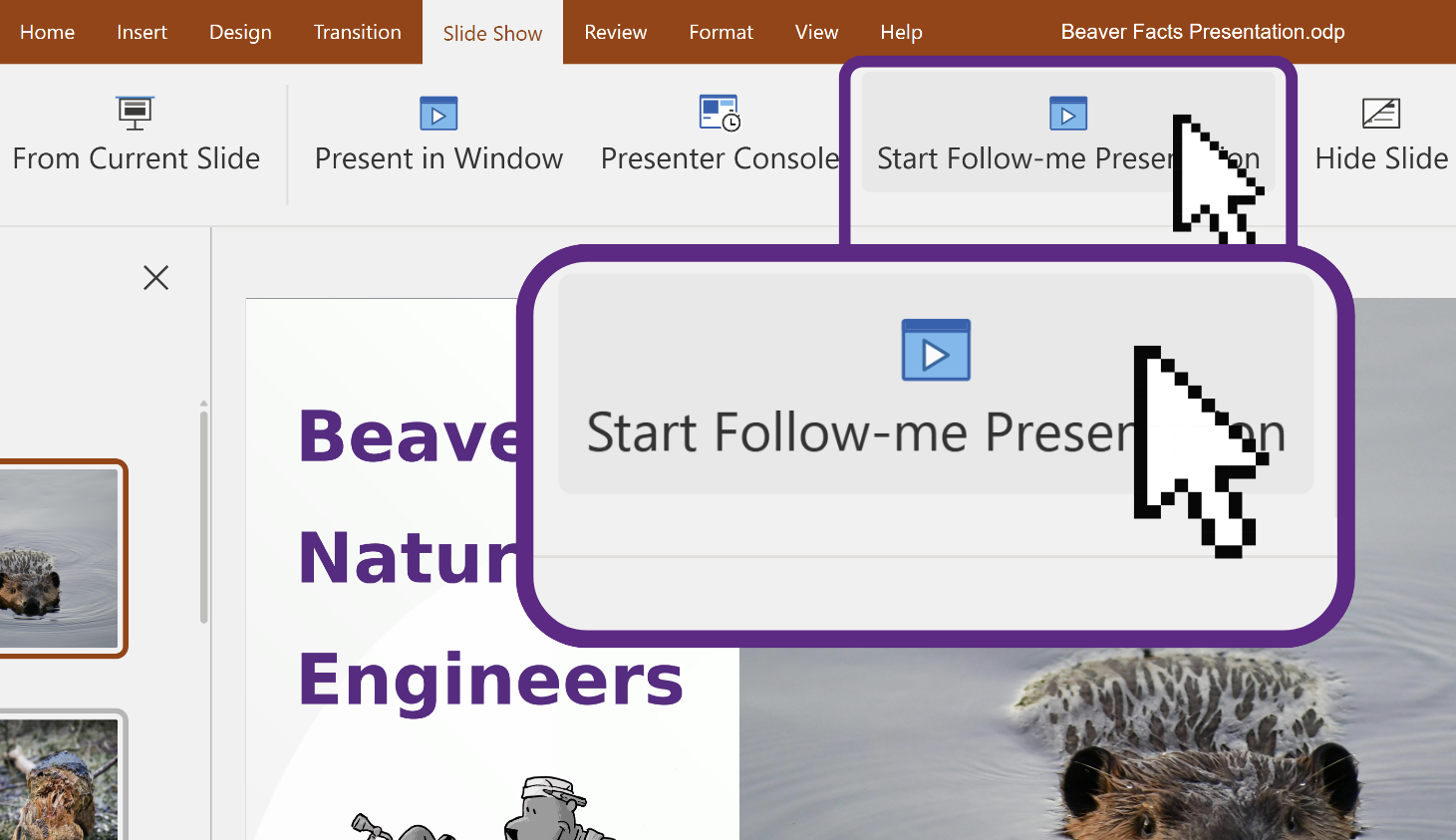
Follow the Presenter in Impress is a smarter way to run slides: everyone opens the deck on their own device, the presenter controls the flow, and all views stay in sync. The smart thing? Participants can jump back briefly if they missed something. A single click on Follow Presenter snaps them back to the current slide, no more “Can we all see slide 14?” needed. It’s more robust than screen sharing and perfect for classrooms, training, boardrooms, and hybrid meetings where people need flexibility without losing the thread (see the full blog post here[link]).
Reset Slide Layout
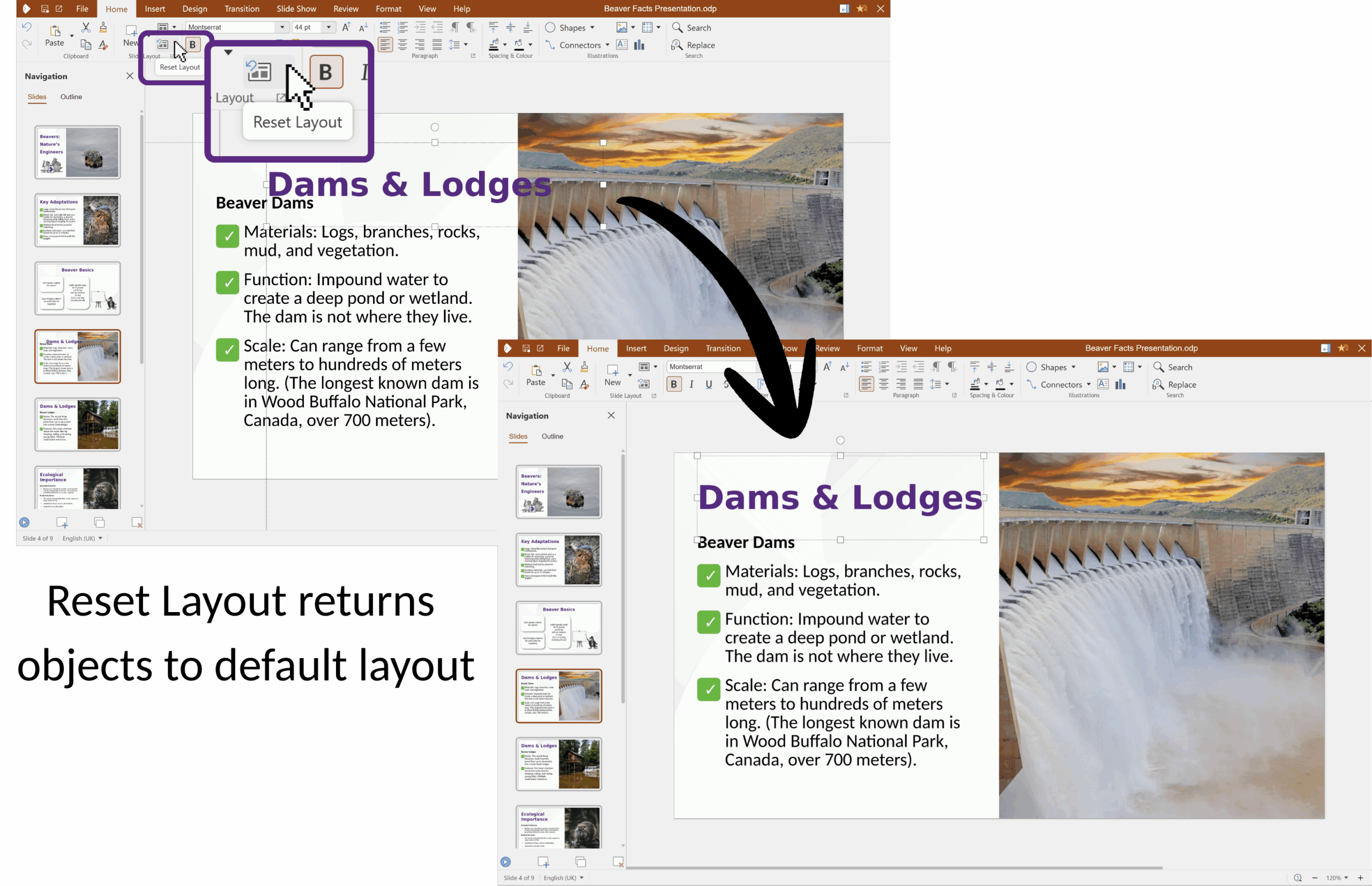
In another Impress win, we’ve added a Reset Layout button for those moments when a slide’s placeholders have drifted from the template. One click restores title, text boxes, and images to their default positions and sizes from the template – great after trying out something new but when you want thing back into their default positions. It’s a small feature that keeps slide decks consistent and tidy without manual nudging.
Intuitive Documents
Find every comment, in context
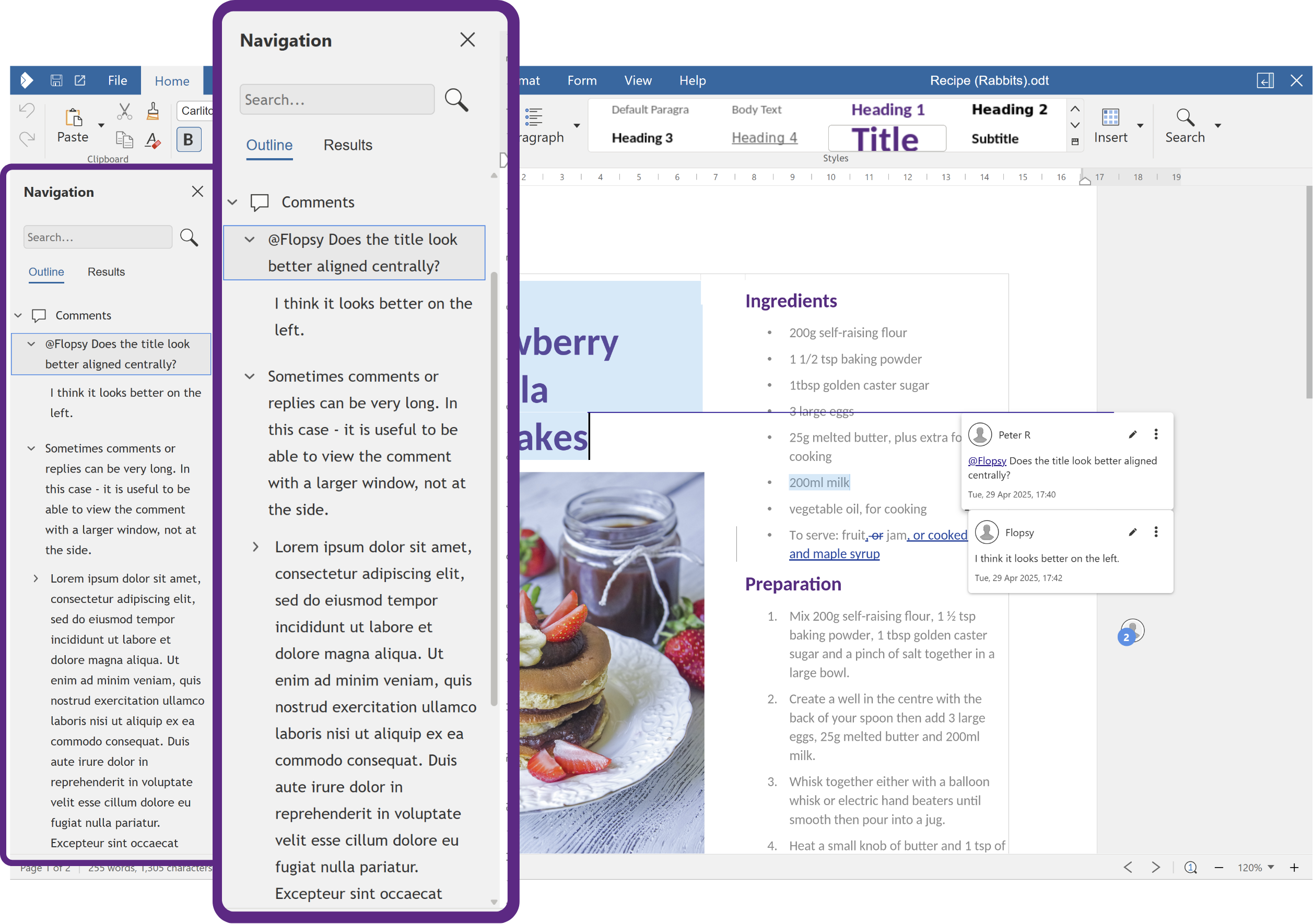
Reviewing long documents just got easier. In Writer, open the Review tab and click Comment – ‘Comments list’ to pop open the Navigation sidebar with its Comments section expanded. You’ll see the text of every comment in order, so you can skim threads at a glance and jump straight to any comment with a single click. No more hunting through pages or scrolling past highlights – pick a comment from the list, and the editor takes you right to its spot in the document.
In addition to this, comment cards have been updated to make editing comments simpler, and reviewing resolved comments quicker.
Styles List Drop Down

If you have many styles within a document, it’s now easier to view them all once even on smaller screens. Simply click on the small icon in the corner of the Styles tab to open a dropdown panel.
A Clearer Calc
Sheet View
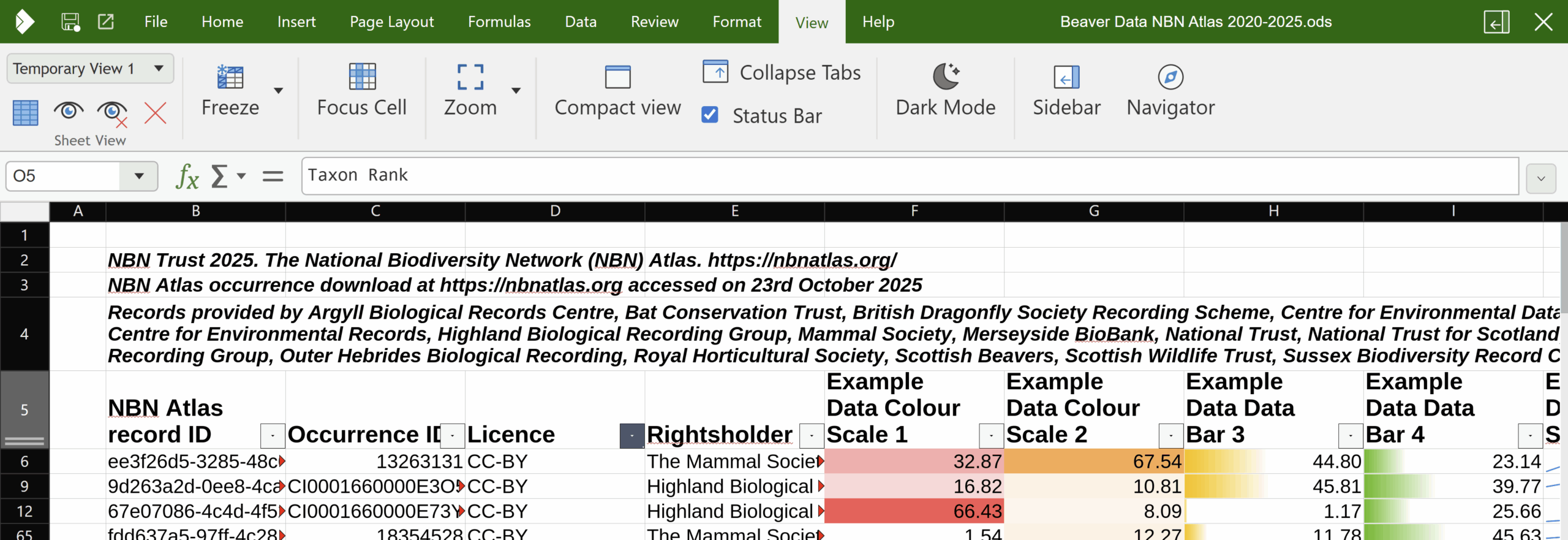
The new Sheet View function allows users to apply filters, sort lists, and hide/show rows in a spreadsheet without disturbing anyone else’s view. You’ll be able to spin up a temporary personal sheet view during a meeting to focus on just your region or product line, while others keep track of the bigger picture, or even their own data in their own view. The underlying data never changes, teammates keep their own context, and reviews stop turning into “where did my data go?” moments!
Smart Dropdowns in Calc
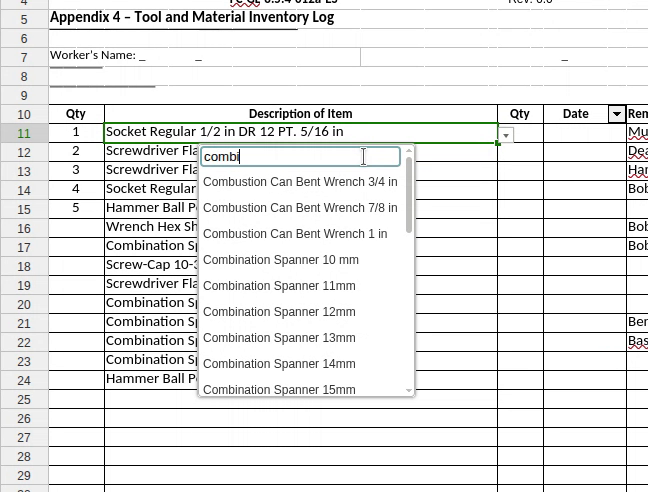
Long dropdown lists now include an optional search field, making it much easier to find items without scrolling through large menus. This is especially useful in dialogs with many entries. The search field is added where it helps, and deliberately omitted when it would be confusing or redundant, ensuring a cleaner and more consistent user experience.
Tab List
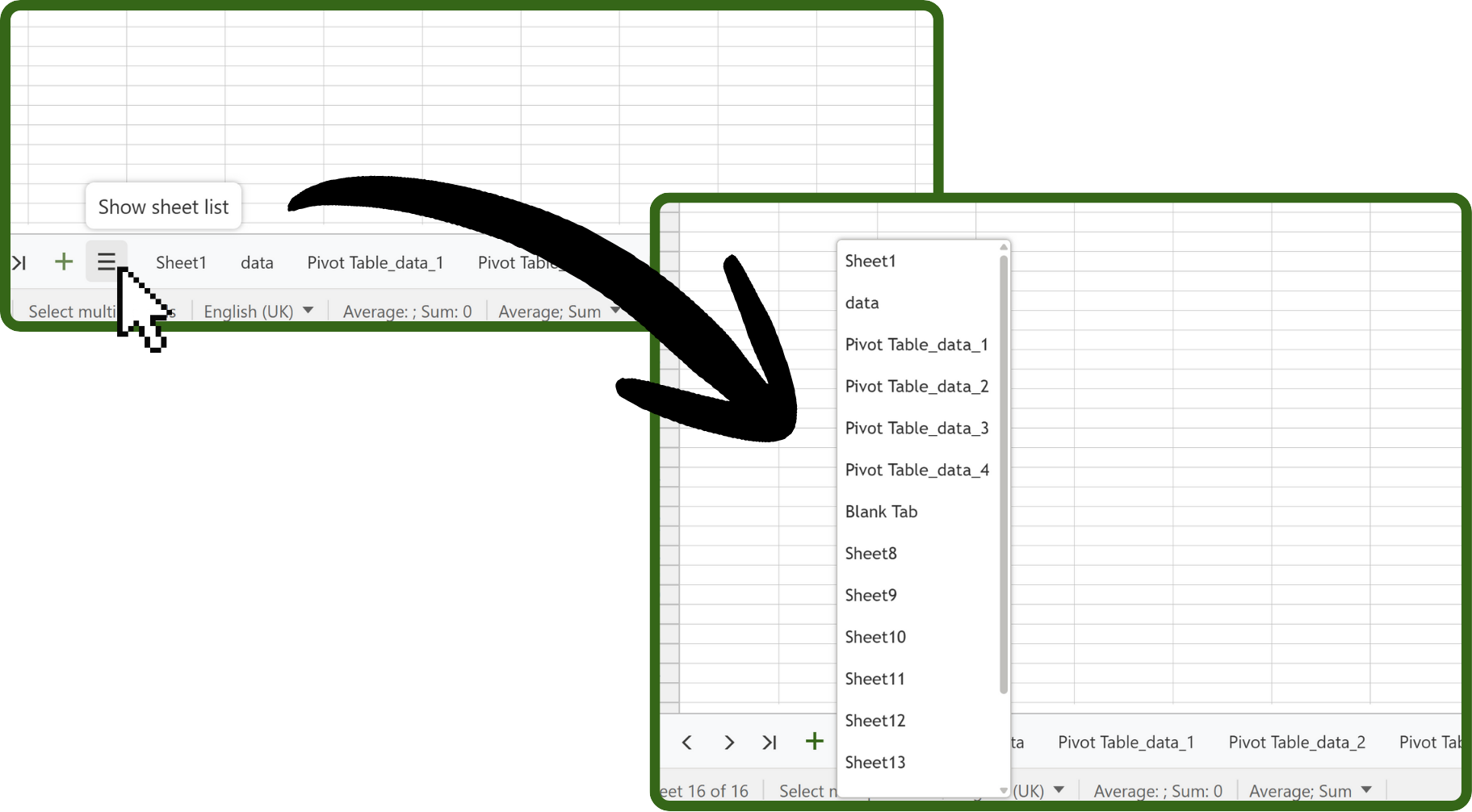
We all have that one spreadsheet with far too many sheet tabs at the bottom. This quick fix lists all your tabs in a simple drop-down (drop-up?) tab list to make finding the right tab quicker and simpler!
Borders in One Place
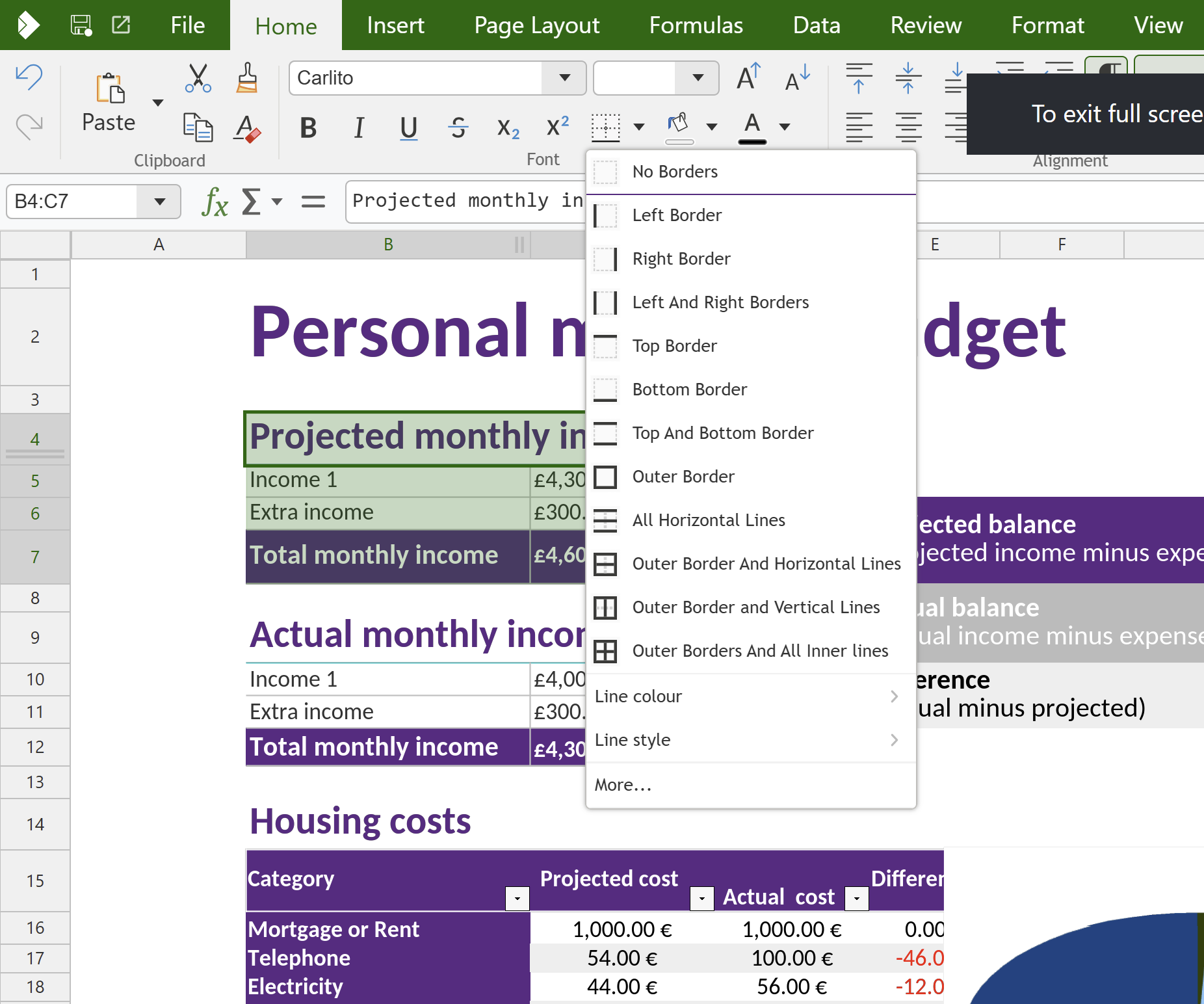
The Cell Border widget in the Home tab has grown up.
Every preset now has a clear label (e.g. No Borders, Left Border, Top and Bottom Border, Outer Border…). Additionally you can now set Line Colour and Line Style directly from within the widget. All part of our effort to help with discoverability and reduce menu diving.
If menu diving is your thing though, click More… at the bottom of the Cell Border dropdown to quickly open the full Format Cells – Borders dialog for maximum control.
Print the Grid (or don’t!)
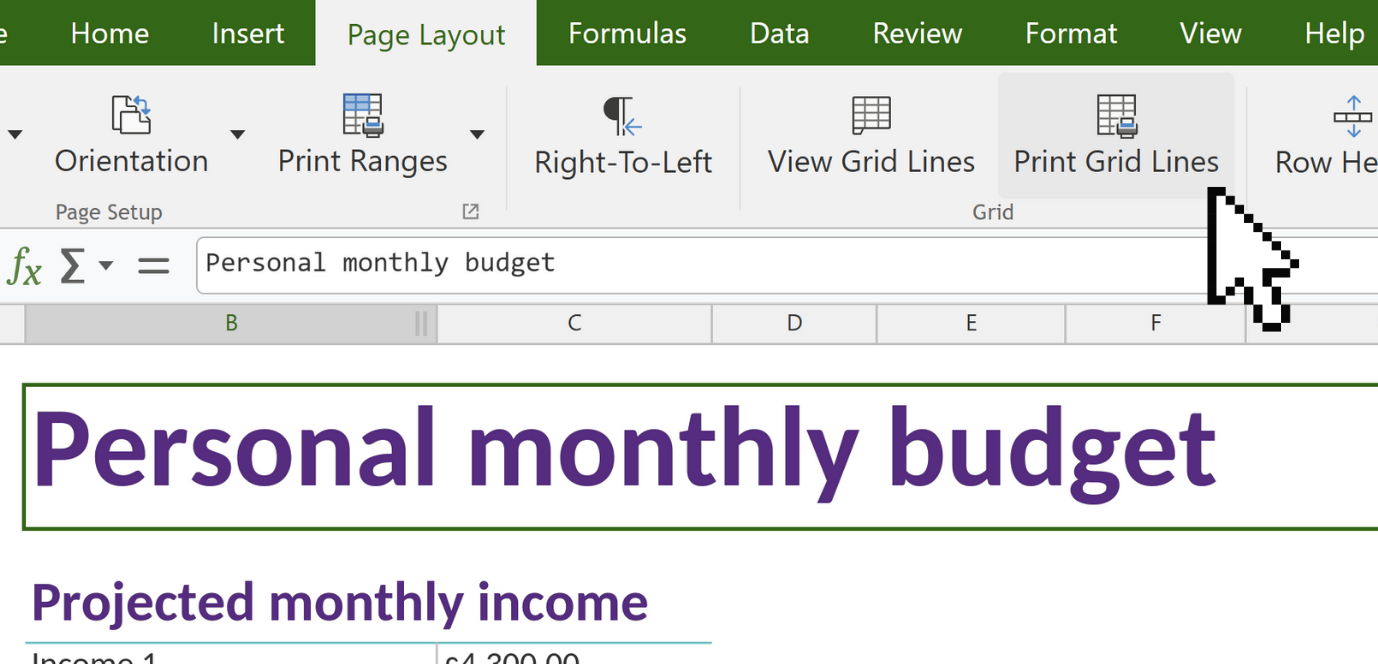
A new Print Grid toggle in the Layout tab lets you decide whether the sheet’s gridlines appear on paper/PDF. Handy for quick handouts or polished exports!
Cursors that Explain Themselves
Small change, big clarity: in Calc the pointer adapts to highlight the possible operations in more contexts – for example:
Column headers (A, B, C…) show an up/down arrow on hover.
Row headers (1, 2, 3…) show a left/right arrow on hover.
Additionally a heavy plus is now the default selection cursor, making targeting cells and ranges feel more deliberate.
Smart toolbars on mobile
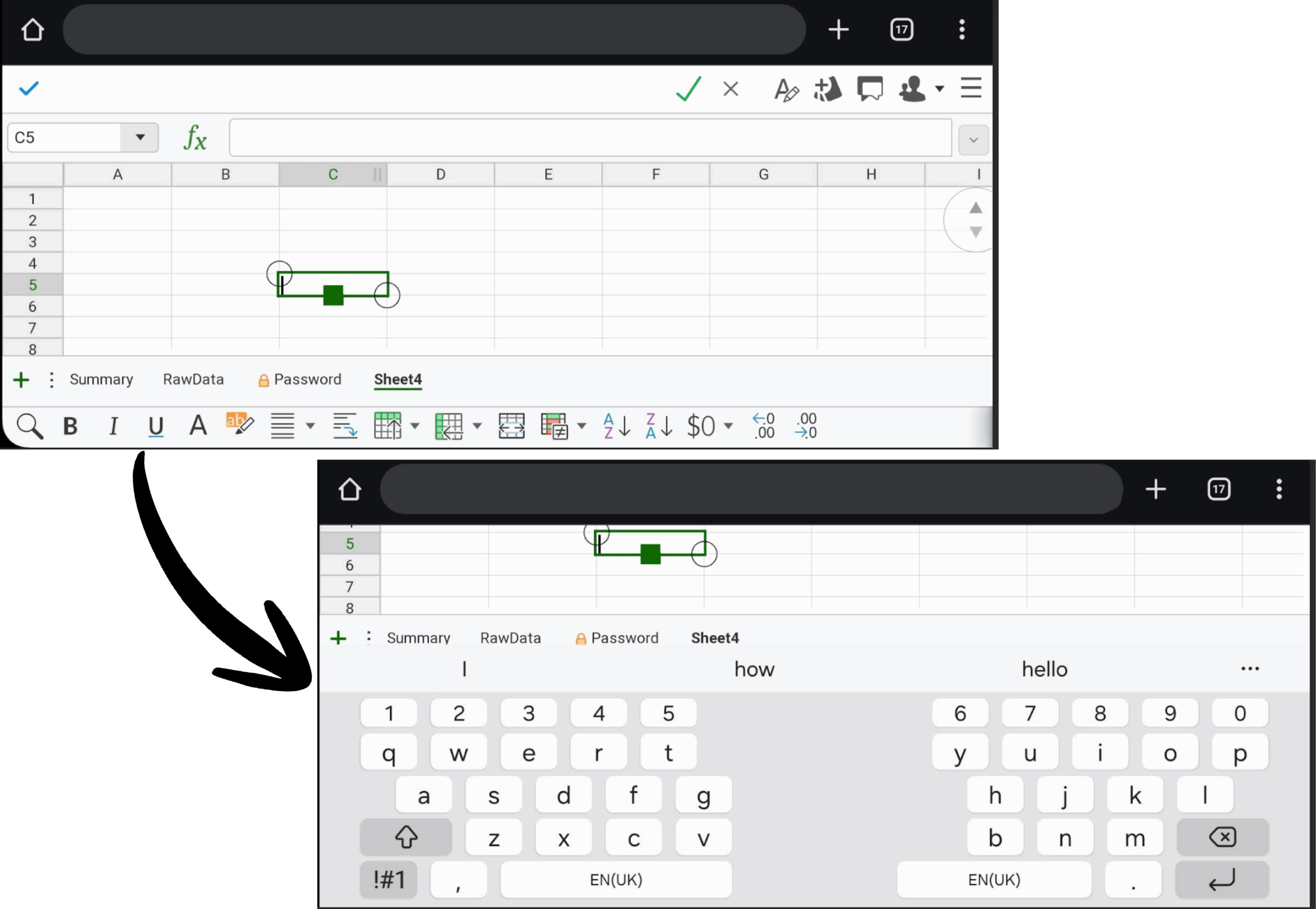
On mobile devices with limited screen height, toolbars automatically hide to maximise the space available for editing content. This improves usability when the on-screen keyboard is visible, preventing situations where the keyboard/toolbars take up all of the screen and leave little or no room for the document itself.
Discoverability that teaches: shortcut hints on hover
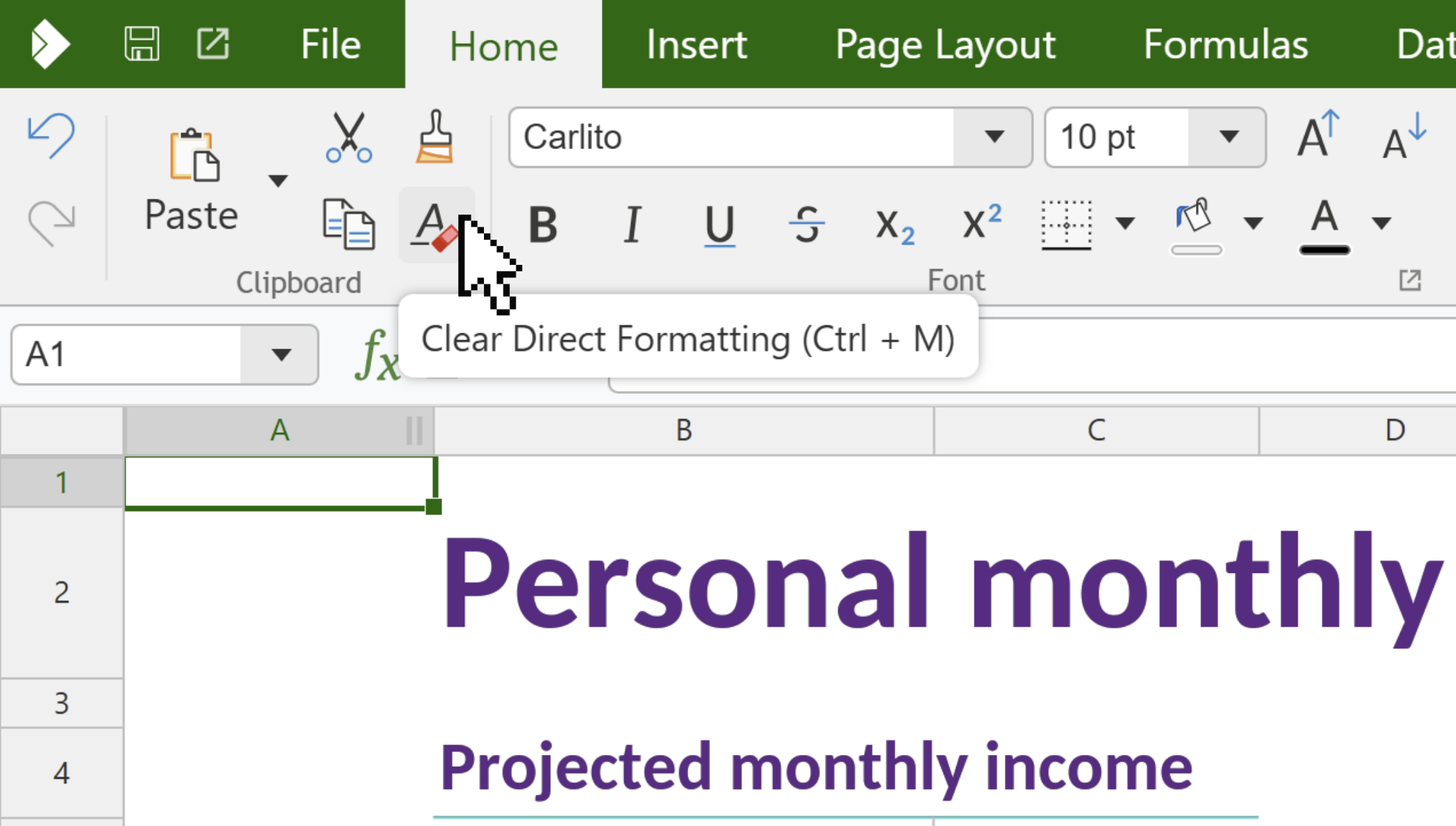
For all apps, tooltips now show the keyboard shortcut next to the action name wherever one exists. Hover over ‘Paste’ and you’ll see Paste (Ctrl+V); hover Justify and you’ll see Justified (Ctrl+J). It’s a small cue that pays off twice: instant speed for power users, and gentle coaching for everyone else.
Instant clarity - Read-only tab
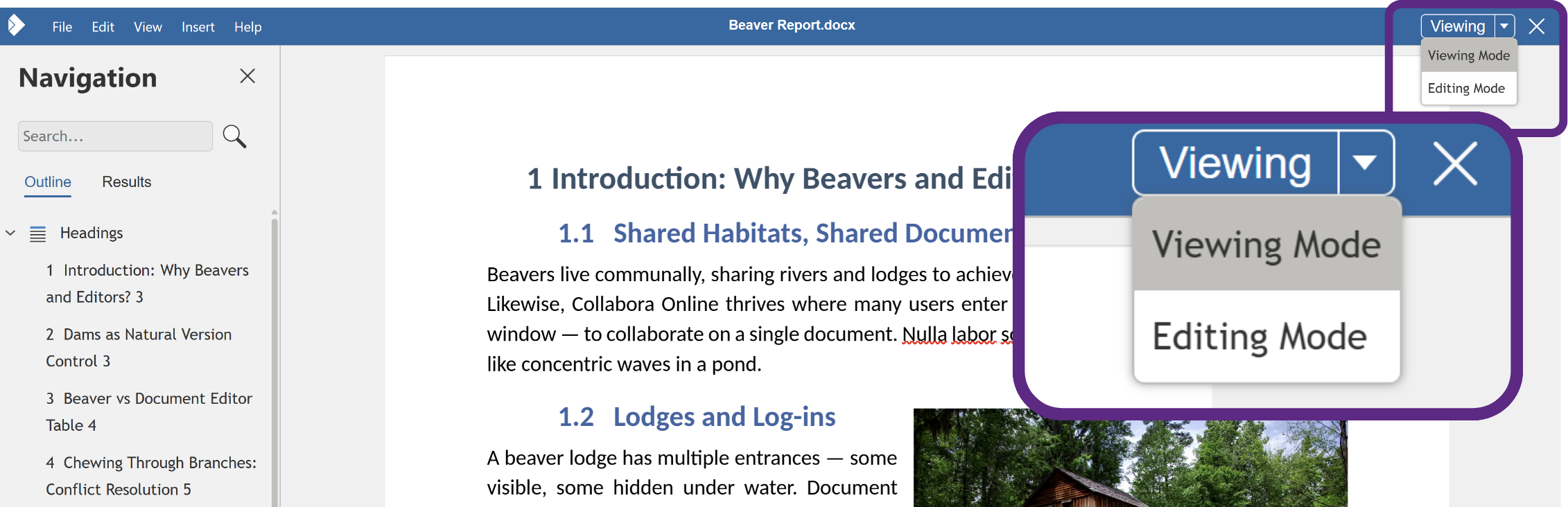
When a document is opened in read-only mode, Collabora Online shows a small but bright Read-only tab in the top-right corner. It’s intentionally unobtrusive but crystal-clear, so people immediately understand why they can’t edit instead of wondering if something’s broken. With a simple drop down beside the tab, it’s easy to switch between read-only and editing modes.
That’s it for Part III – a set of purposeful upgrades aimed at reducing friction across the board: presenting, editing, and number-crunching. If you present, try out our new Follow the Presenter feature. If you edit, the Comments list cuts the scroll. If you live in Calc, clearer cursors, a tidy tab list, and smarter borders help you move faster. And across the suite, shortcut hints teach as you work.
If you’re integrating Collabora Online, tell us what should come next – we’re shipping changes because you asked for them!
If you want to see the new changes, try it out here: