Nextcloud

Nextcloud offers a unique-in-the-industry, fully open-source solution for on-premise data handling and communication with an uncompromising focus on security and privacy. Nextcloud brings together universal access to data with next-generation secure communication and collaboration capabilities under direct control of IT and integrated with existing compliant infrastructure.

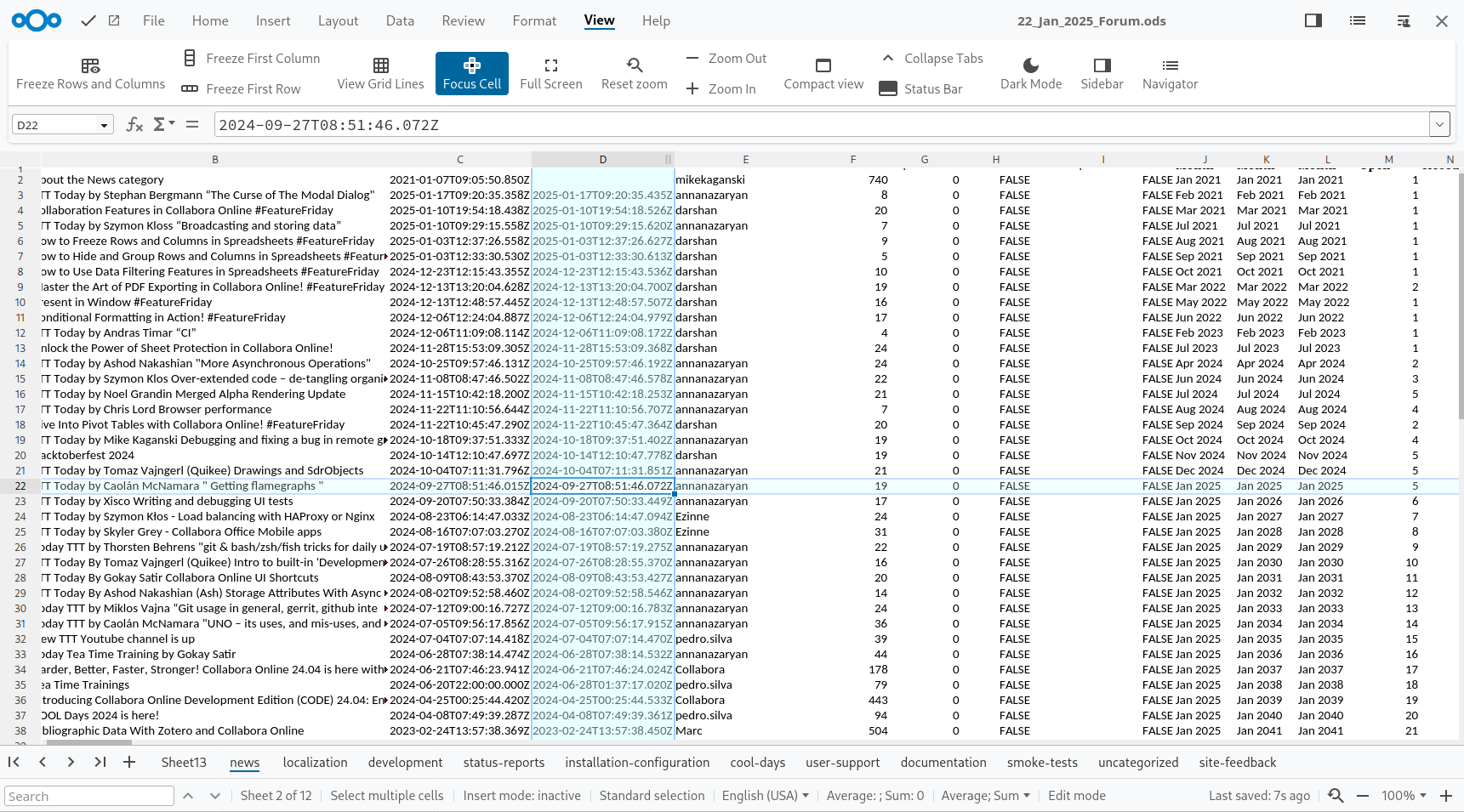
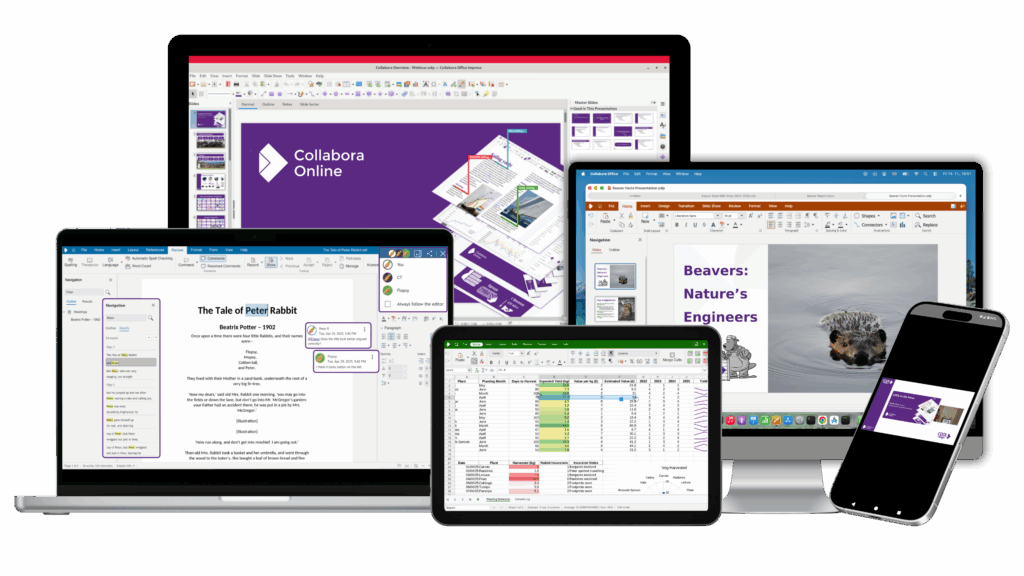
Collabora Online provides Nextcloud users with a full cloud document suite handling all major document formats. It features excellent interoperability with MS Office files and offers an outstanding WYSIWYG experience. Access a huge repertoire of features when collaborating on text files, presentations and spreadsheets.

Nextcloud & Collabora Online Success Stories

“Office suites are super complicated to develop, so it would be impossible to do this without a partner like Collabora Online.”

Seamlessly Integrated into Nextcloud

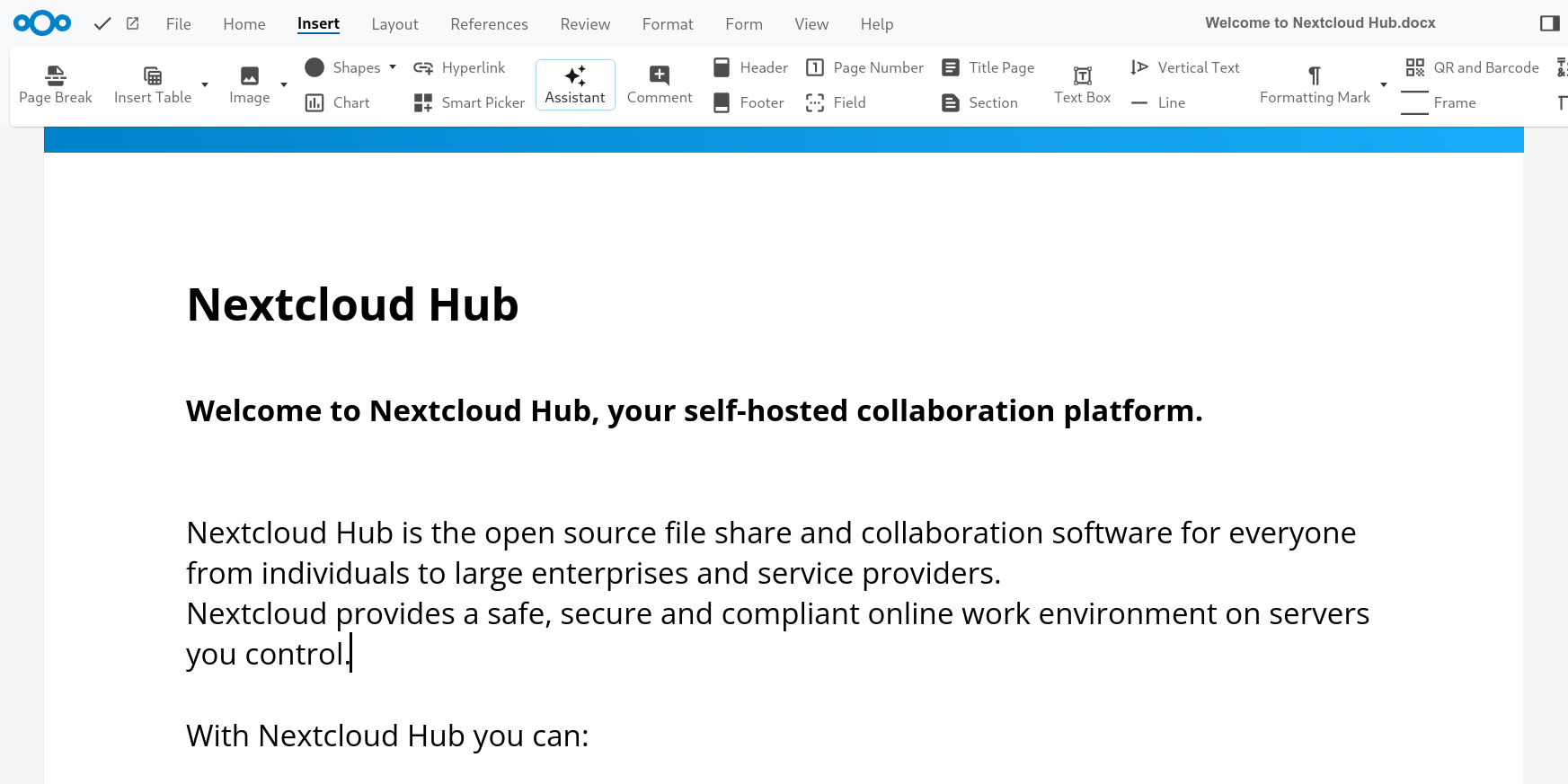
Nextcloud Hub – Remote collaboration made easy

Nextcloud Hub combines key Nextcloud products — Files, Talk, Groupware, Office and Assistant — into a single platform, optimizing the flow of collaboration.

Full editing capabilities & full security

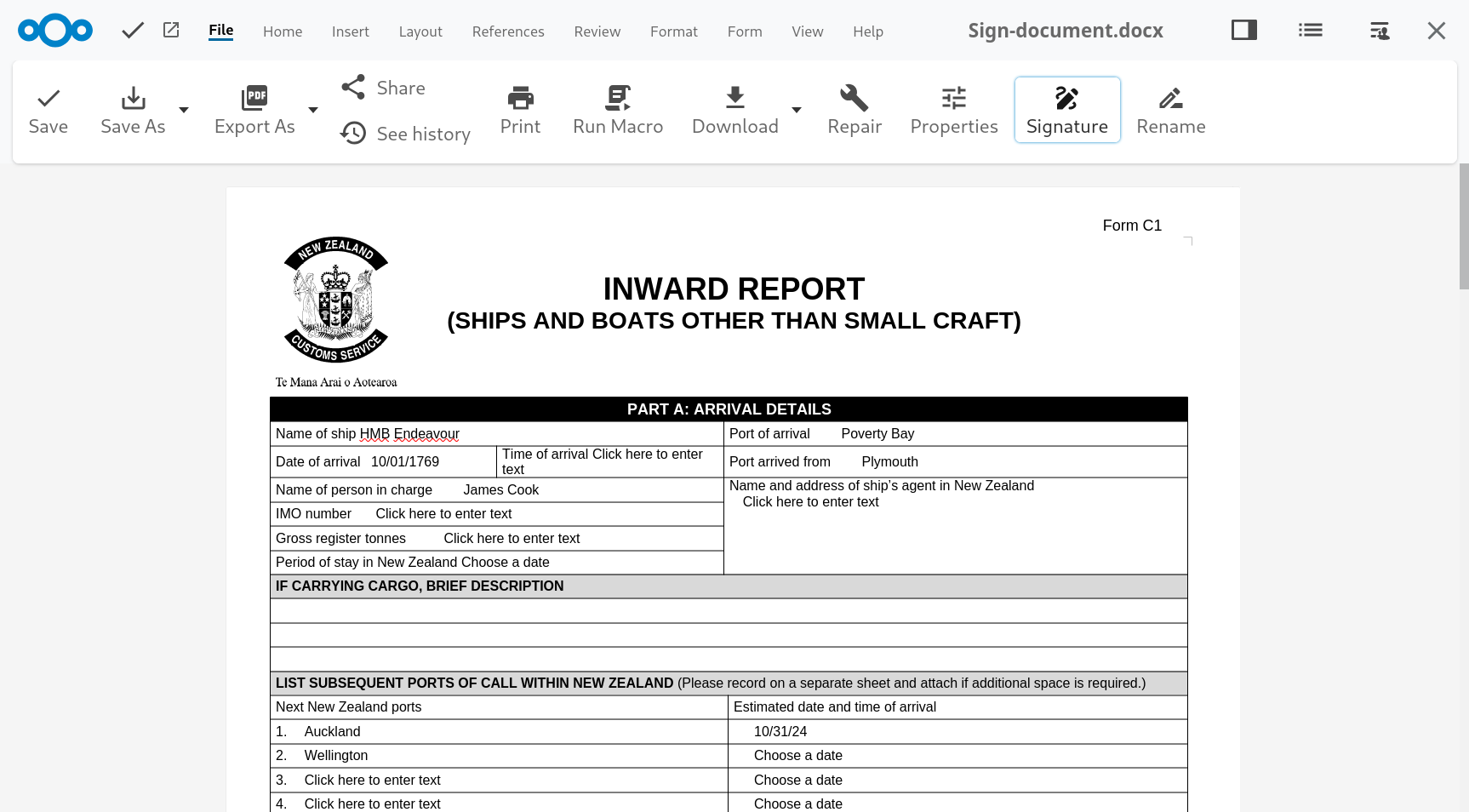
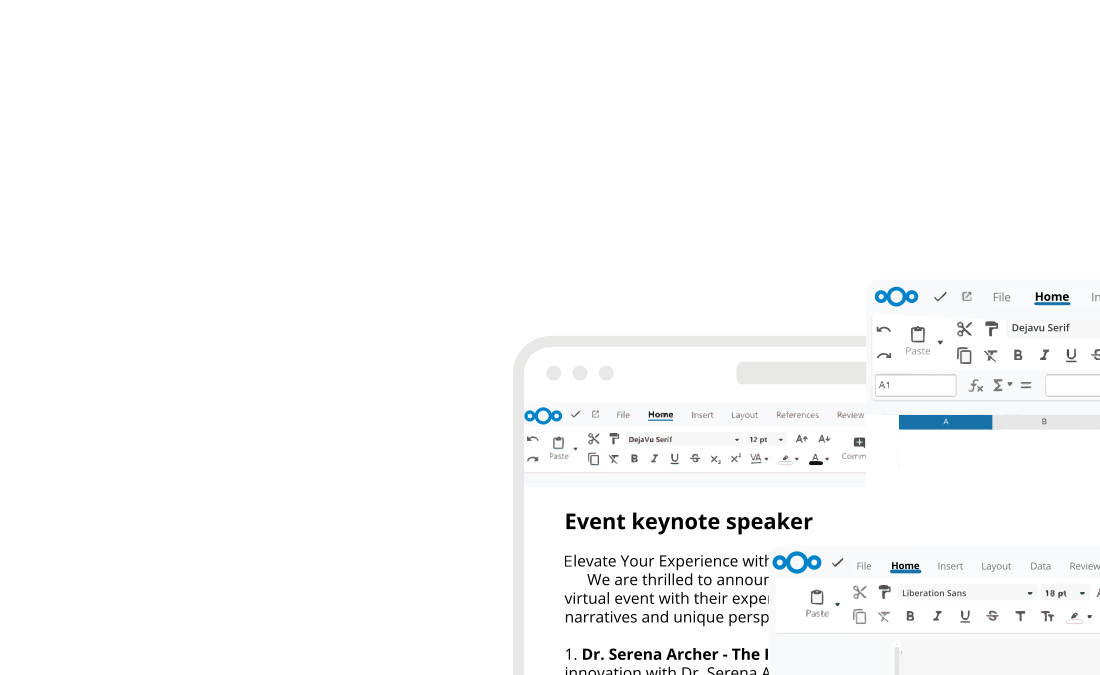
Nextcloud Office is a powerful online office suite with collaborative editing. It supports all major document, spreadsheet and presentation file formats and works in all modern browsers. Nextcloud Office is built together with Collabora Productivity.

Nextcloud offers Collabora Online Office technology for home and enterprise users whilst retaining privacy and security. Home users can easily benefit from Collabora Online by using the built-in CODE Server.

Well-integrated & mobile friendly

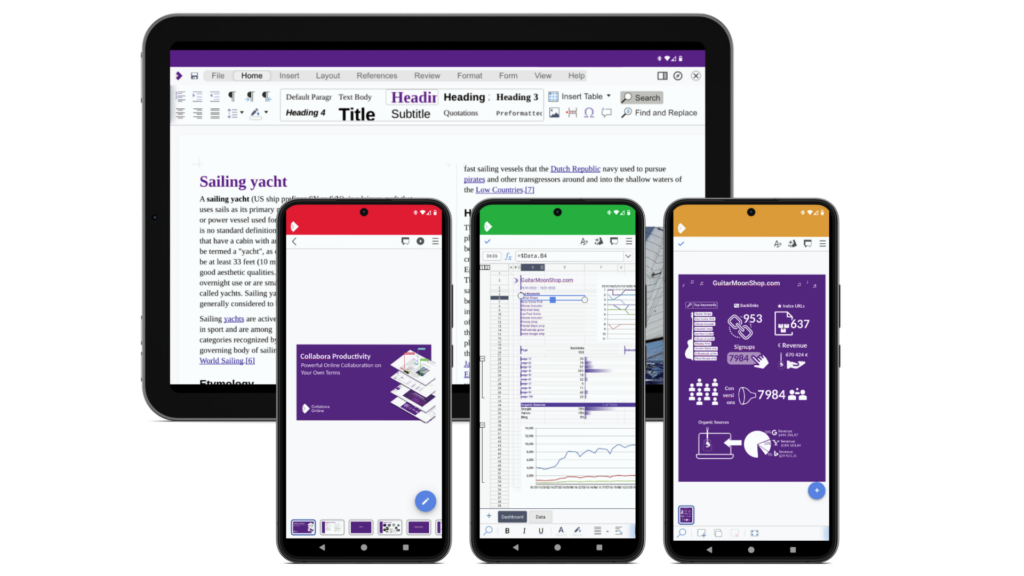
Collabora Online is optimised for smartphones and tablets. You can access and edit your documents stored on Nextcloud from your browser on the desktop, as well as through your mobile devices! It is well integrated, allowing customisations and a choice of UIs.

Client Testimonials

University of Lille
“The University is really aiming at facilitating open standards across the whole campus. Students especially come from different IT cultures and use so many different office tools and software products, that it made sense, and became crucial, to put a common solution at their disposal. And following our benchmark, Collabora Online fits in perfectly with Nextcloud.” - Cédric Foll
Evang.-Luth. Kirche in Bayern
"We deployed Nextcloud with Collabora some months ago. We are very happy with the user-acceptance of the sync&share function and hope to expand on Collabora usage as part of our plans to make Nextcloud a core component of our digital-workspace initiative." - Bartel Pieterse
The Friedrich-List-Gemeinschaftsschul
"It simply works. And it is reliable. That is crucial for us. In combination with Nextcloud, it works wonderfully and is very performant.” - David Binder
Australian Council for Trade Unions
"Collabora Online together with Nextcloud has provided us with a powerful enterprise on-premise solution which has seamlessly integrated with our existing infrastructure. We are impressed with Collabra Online’s preservation of layout and formatting across all documents. This has been a key component in staff utilising Collabora Online. In addition the ability to create native docx, pptx, xlsx files is an impressive feature of Collabora Online within Nextcloud. We anticipate the added feature of a spell checker which is scheduled to be included in the next minor release will be of added value."

Collabora Online with Nextcloud Partners

For specialist help or more advanced integrations and use cases, get in contact with one of our Collabora Online and Nextcloud partners.

Try the Collabora Online Demo

How to Install and Test CODE

Follow these instructions to install CODE with Nextcloud on a Raspberry Pi.

Install Docker and Docker Compose Plugin

1. Install Docker

sudo apt update
sudo apt install docker.io
sudo apt install docker-compose-plugin
sudo systemctl enable docker

2. Allow User to edit docker without sudo

sudo usermod -aG docker $USER

3. Log out and back in

Quick-Setup using provided compose files

(Download compose files)

1. Extract the download to a directory

2. Run docker compose up -d

Make sure you are running compose from the created directory (where the compose file is saved)

3. Access Nextcloud

http://<your local IP address>:8080

4. Create administration account

Keep the SQLite selection and click Install

5. Install recommended apps

Make sure to select “Nextcloud Office”

6. Setup Collabora Online server

Select your profile on the top right > Administration settings > Nextcloud Office (Collabora) > User your own server > Enter http://<your local IP adresse>:9980 > Save
It should now display:

 
7. Create a document and try CODE
 
Your are now all setup and can try editing documents using CODE!

Setting up and configuring native CODE packages on Linux

Collabora provide native Linux packages in deb and rpm formats. For the deb format 3 platforms are supported: amd64, ppc64, and arm64. For the rpm format only amd64 is supported.

1. Import the signing key:

CODE packages are digitally signed by Collabora Productivity Ltd. First step is to import the signing key.

On deb based distributions use the following command:

mkdir -p /etc/apt/keyrings && cd /etc/apt/keyrings
sudo wget -O collaboraonline-release-keyring.gpg https://collaboraoffice.com/downloads/gpg/collaboraonline-release-keyring.gpg

On rpm based distributions use the following command:

wget https://www.collaboraoffice.com/repos/CollaboraOnline/CODE-rpm/repodata/repomd.xml.key && sudo rpm --import repomd.xml.key

2. Add CODE package repositories:

On deb based distributions create /etc/apt/sources.list.d/collaboraonline.sources with the following contents:

Types: deb
URIs: https://www.collaboraoffice.com/repos/CollaboraOnline/CODE-deb
Suites: ./
Signed-By: /etc/apt/keyrings/collaboraonline-release-keyring.gpg

On rpm based distributions use the following commands:

RHEL, CentOS, Fedora, etc.:

sudo yum-config-manager --add-repo https://www.collaboraoffice.com/repos/CollaboraOnline/CODE-rpm

SUSE:

sudo zypper ar 'https://www.collaboraoffice.com/repos/CollaboraOnline/CODE-rpm' 'CODE'
sudo zypper mr -r 'CODE' # enable auto refresh

3. Install packages:

On deb based distributions use the following command:

sudo apt update && sudo apt install coolwsd code-brand

On RHEL, CentOS, Fedora, etc. use the following command:

sudo yum install coolwsd CODE-brand

On SUSE, use the following command:

sudo zypper ref && sudo zypper in coolwsd CODE-brand

This is the minimal installation, without localizations. For full installation install ‘collaboraoffice*’ packages.

4. Configuration:

Edit /etc/coolwsd/coolwsd.xml. Collabora Online (coolwsd) service runs via systemd. After editing the configuration file, you have to restart the service:

sudo systemctl restart coolwsd

Collabora Online logs into systemd journal by default. You can check the log with:

sudo journalctl -u coolwsd

The default configuration is looking for an SSL certificate and key, which are not present, so probably it’s the best to disable SSL, and optionally enable SSL termination, then set up the reverse proxy.

It is highly recommended to set up a reverse proxy in front of CODE, either you run CODE from Docker, or you use native packages. It is easy, and this way CODE can be reached on standard HTTP or HTTPS ports. We provide sample configuration files for Apache2 and Nginx. If you want SSL, we recommend certificates from Let’s Encrypt.

Now you can give https://collabora.example.com as the WOPI URL in your preferred File Sync and Share solution. See below for specific examples.

For more detailed and pretty instructions on integrating with various partner solutions please see (in alphabetical order):

Find alternative ways of setting up CODE on our Collabora Online Development Edition page.

We use cookies to help our website work and improve your experience.
Read our Privacy Policy for more details.

We use cookies

We use cookies to improve your experience on this website. You may choose which types of cookies to allow and change your preferences at any time. Disabling cookies may impact your experience on this website. You can learn more by viewing our Cookie Policy.