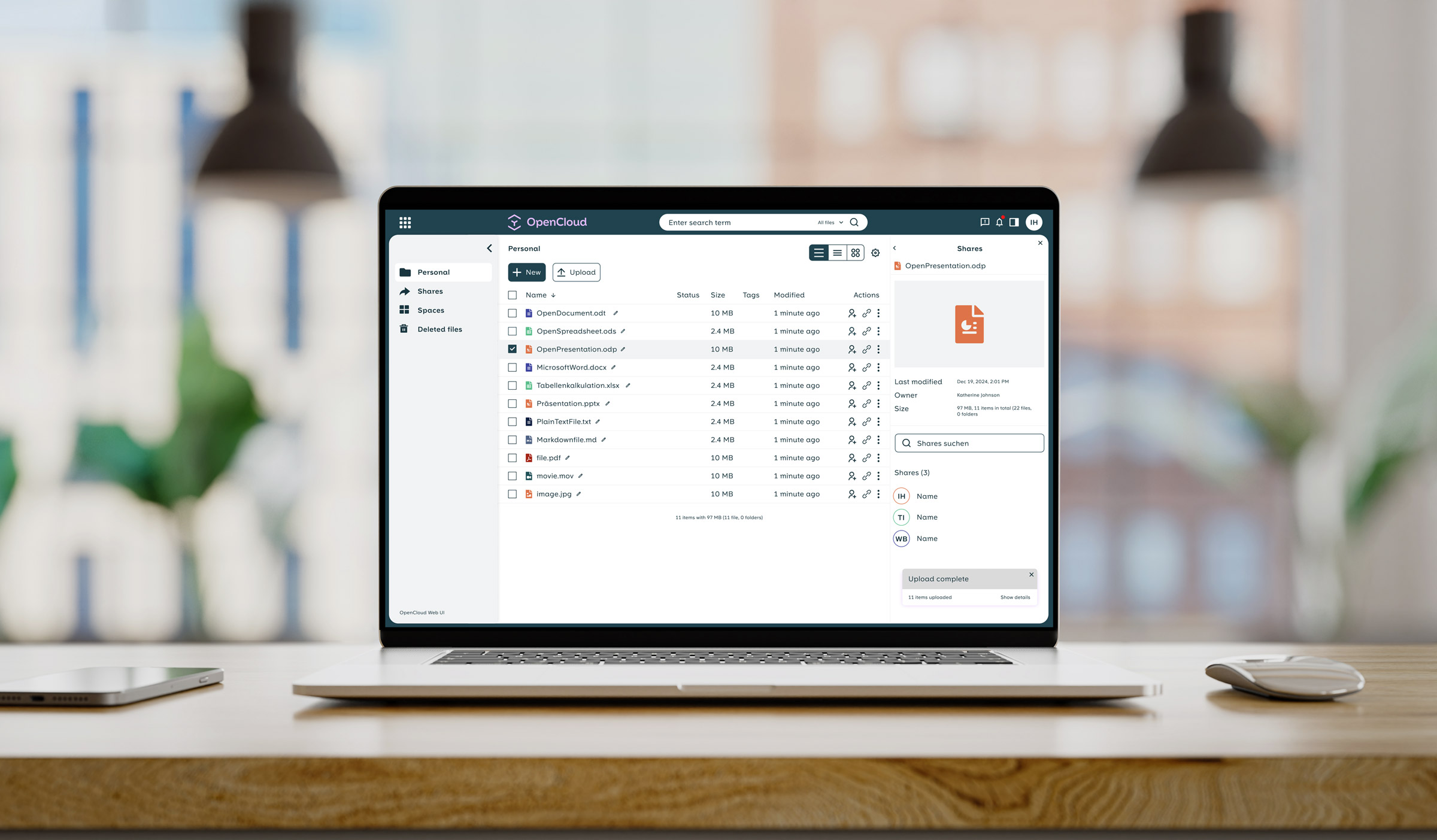
OpenCloud is a powerful, cloud-native, open source solution for file management, file sharing and content collaboration that meets the highest standards of usability, performance, stability and scalability. The software can be flexibly operated on-premise by the user or obtained as a secure SaaS solution from partners. With intuitive operation, seamless integration, person-independent file management (‘Spaces’) and secure versioning, OpenCloud is ideally suited for the public sector, educational institutions, research and large companies and providers.
Together with the video conferencing solution OpenTalk and the secure e-mail provider mailbox.org, OpenCloud is one of the three strong pillars of the Heinlein Group, which provides secure and digitally sovereign IT infrastructures for Europe.
- Germany
- File Sync and Sharing, Groupware and Productivity Tool
Collaboration Made Easy
Create data rooms that enable access for all team members and promote efficient collaboration. Files and folders can be organized, managed and securely shared in these central areas.
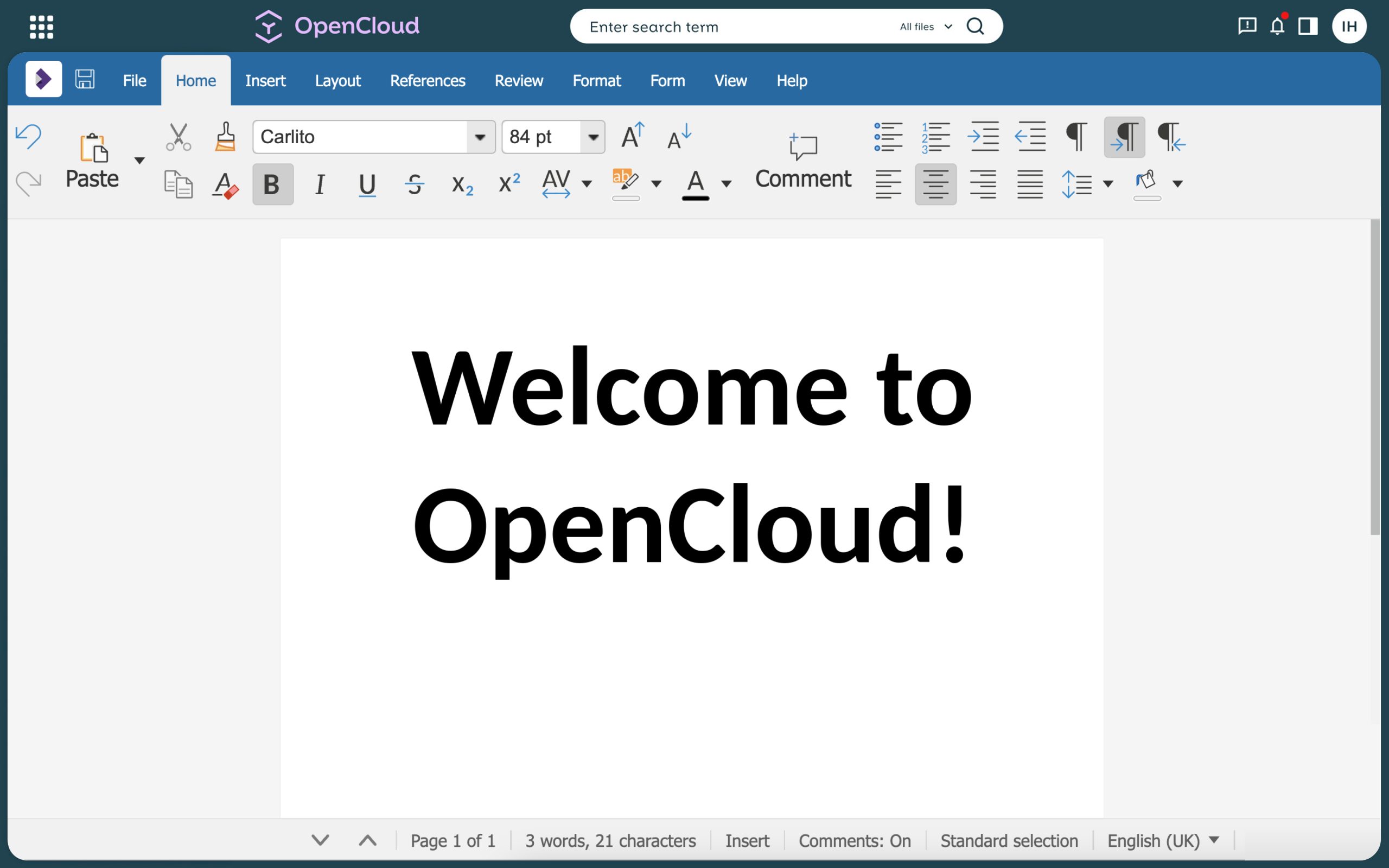
Web Office – Productive Teamwork
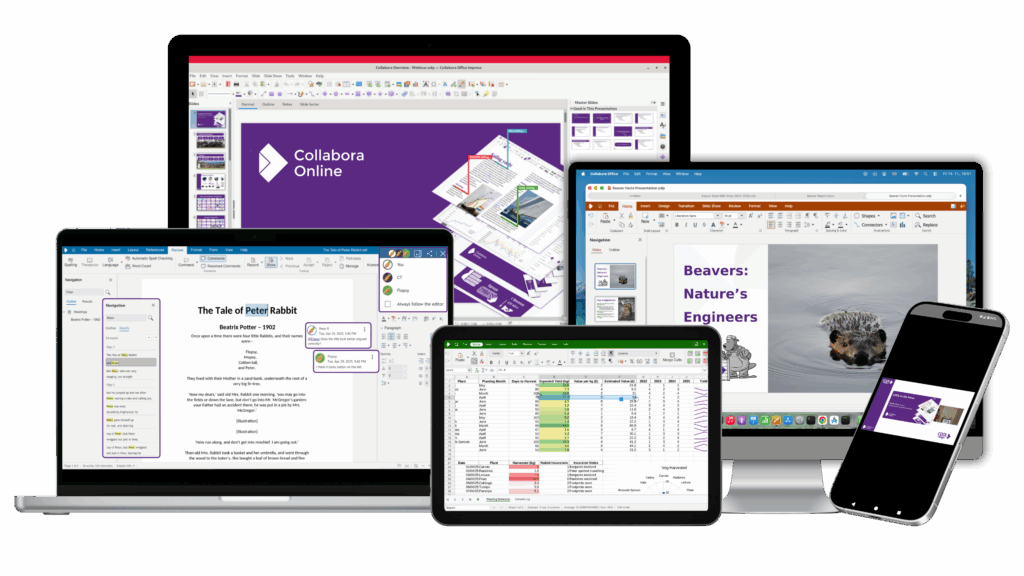
Collabora Online is optimised for smartphones and tablets. You can access and edit your documents stored on OpenCloud from your browser on the desktop, as well as through your mobile devices. Changes to documents are synchronized in real time, ensuring all team members always have access to the latest version – even on the go.
Future-proof and High-performance Architecture
A modern software stack with a user-friendly interface for secure collaboration, easy file sharing and long-term file management. Flexible deployment options, operated in your own data centre or obtained as a SaaS offering from partners.

Try the FREE Demo
How to Install and Test CODE
Install Docker and Docker Compose Plugin
1. Install Docker
sudo apt update
sudo apt install docker.io
sudo apt install docker-compose-plugin
sudo systemctl enable docker
2. Allow User to edit docker without sudo
sudo usermod -aG docker $USER
3. Log out and back in
Quick-Setup using provided compose files
1. Extract the download to a directory
2. Add hosts file entry
Edit your hosts file (/etc/hosts) and add
<your-local-ip> opencloud collabora
3. Run docker compose up -d
Make sure you are running compose from the created directory (where the compose file is saved)
4. Open Collabora Online in webbrowser and accept self signed certificate
https://collabora:9980
5. Create a document and try CODE
Open https://opencloud:9200
Default login: admin PW: admin
You are now all setup and can try editing documents using CODE!
Setting up and configuring native CODE packages on Linux
Collabora provide native Linux packages in deb and rpm formats. For the deb format 3 platforms are supported: amd64, ppc64, and arm64. For the rpm format only amd64 is supported.
1. Import the signing key:
CODE packages are digitally signed by Collabora Productivity Ltd. First step is to import the signing key.
On deb based distributions use the following command:
mkdir -p /etc/apt/keyrings && cd /etc/apt/keyrings sudo wget -O collaboraonline-release-keyring.gpg https://collaboraoffice.com/downloads/gpg/collaboraonline-release-keyring.gpg
On rpm based distributions use the following command:
wget https://www.collaboraoffice.com/repos/CollaboraOnline/CODE-rpm/repodata/repomd.xml.key && sudo rpm --import repomd.xml.key
2. Add CODE package repositories:
On deb based distributions create /etc/apt/sources.list.d/collaboraonline.sources with the following contents:
Types: deb URIs: https://www.collaboraoffice.com/repos/CollaboraOnline/CODE-deb Suites: ./ Signed-By: /etc/apt/keyrings/collaboraonline-release-keyring.gpg
On rpm based distributions use the following commands:
RHEL, CentOS, Fedora, etc.:
sudo yum-config-manager --add-repo https://www.collaboraoffice.com/repos/CollaboraOnline/CODE-rpm
SUSE:
sudo zypper ar 'https://www.collaboraoffice.com/repos/CollaboraOnline/CODE-rpm' 'CODE' sudo zypper mr -r 'CODE' # enable auto refresh
3. Install packages:
On deb based distributions use the following command:
sudo apt update && sudo apt install coolwsd code-brand
On RHEL, CentOS, Fedora, etc. use the following command:
sudo yum install coolwsd CODE-brand
On SUSE, use the following command:
sudo zypper ref && sudo zypper in coolwsd CODE-brand
This is the minimal installation, without localizations. For full installation install ‘collaboraoffice*’ packages.
4. Configuration:
Edit /etc/coolwsd/coolwsd.xml. Collabora Online (coolwsd) service runs via systemd. After editing the configuration file, you have to restart the service:
sudo systemctl restart coolwsd
Collabora Online logs into systemd journal by default. You can check the log with:
sudo journalctl -u coolwsd
The default configuration is looking for an SSL certificate and key, which are not present, so probably it’s the best to disable SSL, and optionally enable SSL termination, then set up the reverse proxy.
It is highly recommended to set up a reverse proxy in front of CODE, either you run CODE from Docker, or you use native packages. It is easy, and this way CODE can be reached on standard HTTP or HTTPS ports. We provide sample configuration files for Apache2 and Nginx. If you want SSL, we recommend certificates from Let’s Encrypt.
Now you can give https://collabora.example.com as the WOPI URL in your preferred File Sync and Share solution. See below for specific examples.
For more detailed and pretty instructions on integrating with various partner solutions please see (in alphabetical order):
- Nextcloud Setup Instructions (Apache & Nginx)
- ownCloud